


iGarden Product Support & FAQs
General
All iGarden pool cleaners undergo a 100% water inspection before shipping to ensure they work perfectly.
Because of this, you might notice small water droplets inside the packaging—this is completely normal and nothing to worry about.
No. It is equipped with soft tracks. During the development process, we extensively tested it on various plaster surfaces and found no scratches under normal use conditions.
The battery is not replaceable.
Because the pool cleaner operates underwater, the battery pack is fully sealed inside a glued, waterproof plastic enclosure to ensure safety and prevent water ingress.
For this reason, replacement batteries are not sold separately, and the internal battery cannot be removed or replaced by users.
No, the return tool is not sold separately. It requires a built-in signal module in the pool cleaner, which is only available on the new upgraded K Pro models.
We currently do not offer a caddy or caddy cover accessory for the Pool Cleaner. You can buy a universal one on Amazon.
Our product does not include a pole.
This is also common across most wireless pool cleaning robots, as pool depths vary greatly, and customers typically select a pole length that suits their specific pool.
To ensure compatibility with the hook, we recommend using a pole with a 1-inch diameter.
The pool cleaner is designed with performance, durability, and stability as top priorities. To achieve strong suction power, reliable navigation, and long-term operating stability, it is equipped with high-performance motors, a large-capacity battery, and reinforced internal components, all of which naturally increase its overall weight.
In fact, most high-performance robotic pool cleaners on the market fall within a similar weight range, typically around 9 kg (20 lbs) to 15 kg (33 lbs).
When the cleaner is lifted out of the water, it may also feel 1–2 kg (2-4 lbs) heavier temporarily due to residual water retained inside the unit.
For easier handling, we recommend the new upgarded K Pro models, which include a return tool to make lifting, retrieving, and transporting the robot more convenient.
Yes! The iGarden pool cleaner works perfectly with infinity pools.
Its smart navigation system keeps it cleaning efficiently and safely, so you can enjoy crystal-clear water without any extra effort.
Yes, the pool cleaner is compatible with Pebble Tec surfaces as long as the surface is smooth and free of protrusions.
For the best assessment, we recommend sending a close-up photo of your pool surface so we can confirm compatibility before use.
Yes. The pool cleaner can operate in saltwater pools with salinity below 5000 ppm.
This range covers most residential saltwater pools. If your pool’s salt concentration is higher than 5000 ppm, it may affect the cleaner’s performance and long-term durability.
Yes! The iGarden pool cleaner works safely in the rain.
However, we recommend running the pool cleaner after rainning, so it can remove leaves and other debris that may have fallen into the pool while raining.
It depends on how much debris is in your pool. As a general guideline, running the cleaner once or twice a week keeps your pool clean and reduces manual maintenance.
The the Pool Cleaner K can handle the floor, walls, and waterline of your pool.
Cleaning time depends on your pool’s size, shape, and the selected mode, but for most home pools, a typical cycle takes around 2 hours.
Yes, the Pool Cleaner can clean a beach entry area as long as the water depth is greater than 40 cm (1.3 ft), which allows the robot to maintain proper operation and suction performance. If the water becomes too shallow, the cleaner will automatically move back to a deeper area when it detects insufficient depth.
Yes, the Pool Cleaner can climb onto and clean a tanning ledge as long as the water depth is greater than 40 cm (1.3 ft), which allows the robot to maintain proper operation and suction performance.
The Pool Cleaner K is great at cleaning your main pool floor and walls, ensuring a clear pool with minimal effort.
However, because of its size and design, it may not reach narrow areas like stairs or tight corners — this is completely normal for robotic cleaners.
For best results, we recommend occasionally brushing those spots manually to keep your entire pool perfectly clean.
No, the Pool Cleaner K is designed to clean the floor, walls, and waterline of your pool.
It does not clean the water surface, so surface debris should be removed manually or with a separate skimmer.
Yes, the pool cleaner can climb pool slopes while operating in floor mode and transition between deep and shallow areas during cleaning.
However, performance may be affected if the slope is too steep, and it may not climb reliably when the incline exceeds approximately 30 degrees. For steeper slopes, it is recommended to use wall mode to improve climbing performance.
The Pool Cleaner K series is primarily designed for daily maintenance cleaning rather than extremely heavy initial cleanup.
During spring opening or after long periods without cleaning, pools may contain large amounts of algae, dust, leaves, and fine debris. In these conditions, the filter can become clogged quickly, which may reduce suction power and affect wall-climbing performance.
For the best cleaning results, we recommend the following process:
- First, run your pool pump and filtration system to remove heavy contamination and improve overall water conditions.
- Then use the Pool Cleaner in Floor Only mode first to clean the pool bottom before attempting wall cleaning. After the floor is cleaned, switch to Wall mode to clean the walls and waterline more effectively.
- While cleaning a dirty pool, it is recommended to remove the 60µm fine filter layer and use only the 180µm filter basket, since the 60µm filter is designed for fine particles and may clog more easily under heavy debris conditions, which can reduce suction and climbing performance.
Once the pool condition is improved, the cleaner will work more effectively for routine maintenance and help keep the pool clean on a daily basis.
The Pool Cleaner comes with a dual-layer filtration system designed to handle both large debris and fine particles. The 60μm fine filter is effective for capturing algae, dust, and fine sand, but it can also clog more easily, increasing water flow resistance and potentially affecting suction and wall-climbing performance.
If your pool contains heavy algae, dust, or fine sand, it is recommended to first remove the 60μm fine filter layer and use only the standard 180μm filter basket for the initial cleaning cycle. This helps maintain stronger suction and reduces the risk of clogging during heavy-duty cleaning.
After the initial cleaning is completed, rinse the filters thoroughly, then reinstall the 60μm fine filter layer for a second deep-cleaning cycle to capture any remaining fine debris.
The Pool Cleaner uses a dual-filtration system consisting of a 180µm filter basket and an 60µm fine filter layer, which are designed for different cleaning needs.
For initial cleaning or when dealing with heavier debris, it is recommended to remove the 60µm filter layer and use only the 180µm filter basket to maintain stronger suction and better overall performance. The 60µm filter layer is designed for fine particles such as dust and algae, but it can increase water flow resistance and is more likely to clog during heavy-duty cleaning.
For best results, the 60µm fine filter should only be used in floor-only cleaning mode or when targeting fine debris, while wall cleaning or mixed debris conditions are better suited to the 180µm filter basket alone to ensure stable suction and climbing performance.
After each use, both filters should be rinsed thoroughly, and regular deep cleaning is recommended to prevent clogging and maintain optimal performance.
When the robot has finished cleaning and is still in the pool, you can use the return tool to recall it. The return stick emits a sonar signal that wakes up the robot, prompting it to move toward the signal source and climb to the pool wall, where it will pause near the waterline for about 5 minutes so you can easily retrieve it.
If the return tool does not work properly, it may be because the robot is too far away, causing the signal to be too weak to reach it, or because poor water conditions are interfering with the sonar signal and reducing its effectiveness.
No, the Pool Cleaner K will not automatically return to the water surface after completing a cleaning cycle. It will auto park in the pool edge and stop operating once the cycle is finished.
For new upgarded K Pro models, a return tool is included to assist with retrieval. When the cleaning cycle is complete and the robot is still in the pool, you can use the return tool to send a sonar signal that wakes up the robot and guides it toward the signal source. The robot will then move toward the pool wall, climb up to the waterline, and pause there for about 5 minutes, allowing you to easily retrieve it.
The Pool Cleaner K Series is designed to handle most common pool debris.
Standard filter (180µm filter basket):
Captures leaves, hair, small twigs, and gravel for daily cleaning.
Fine filter (60µm filter layer):
Ideal for fine particles such as sand, dust, and algae, but may reduce water flow if heavily clogged.
Tip:
For regular use, the standard filter is recommended, while the fine filter should be used when your pool contains finer debris for a deeper clean.
All K Series models support floor, wall, and waterline cleaning. They all include App control and the AI Timer function.
The main difference lies in battery capacity and runtime. Higher-end models—such as the K Pro—offer longer battery life, allowing multiple cleaning cycles on a single charge.
Please refer to the manual for full specifications.
iGarden offers multiple series to match different pool needs:
KN Series – Best Value (Easy & Affordable)
Best for: Small to medium pools, daily cleaning
Coverage: Floor + wall + waterline
Highlights: Smart navigation, energy-efficient
👉 Great choice if you want reliable cleaning at a good price.
K Series – Best All-Around (Most Popular)
Best for: Medium to large pools, mixed debris
Coverage: Floor + wall + waterline
Highlights: Turbo suction, long runtime, smart navigation, auto weekly cleaning
👉 Ideal for most users who want power + convenience.
M1 Series – Premium AI (Smartest Cleaning)
Best for: Large or complex pools, heavy debris
Coverage: Full pool with optimized path
Highlights: AI Vision (targets debris), advanced navigation, turbo suction
👉 Best if you want maximum automation and top performance.
We’d love to help you find the perfect iGarden cleaner for your pool.
To recommend the right model, please share:
- Pool size & shape — rectangular or freeform, large or small, and whether it includes tanning ledges, benches, slopes, or stairs (photos are very helpful).
- Cleaning coverage needed — whether you mainly need floor cleaning or full coverage including walls and waterline.
- Battery/runtime preference — for example, shorter daily cleaning cycles or longer runtime with AI timer scheduling.
- Typical debris — such as leaves, dust, fine sand, algae, or heavy tree debris.
- AI feature preference — whether you would like AI-assisted path planning and targeted large-debris cleaning.
Once you share your pool details, we can recommend the exact model that best matches your pool conditions and cleaning needs.
The pool cleaner is designed primarily for daily maintenance cleaning.
If your pool is extremely dirty—for example, after winterization or a major storm—we recommend doing some basic pre-cleaning first. This may include manually removing large debris or running your pool pump and filter system to clear heavy contamination.
Once the pool is partially cleaned, the robot will perform more effectively and help maintain a clean pool on a daily basis.
The battery is not replaceable.
Because the pool cleaner operates underwater, the battery pack is fully sealed inside a glued, waterproof plastic enclosure to ensure safety and prevent water ingress.
For this reason, replacement batteries are not sold separately, and the internal battery cannot be removed or replaced by users. If you are experiencing battery or runtime issues, please contact iGarden Customer Support for assistance.
The Pool Cleaner K is great at cleaning your main pool floor and walls, ensuring a clear pool with minimal effort.
However, because of its size and design, it may not reach narrow areas like stairs or tight corners — this is completely normal for robotic cleaners.
For best results, we recommend occasionally brushing those spots manually to keep your entire pool perfectly clean.
Yes, the pool cleaner is compatible with Pebble Tec surfaces as long as the surface is smooth and free of protrusions.
For the best assessment, we recommend sending a close-up photo of your pool surface so we can confirm compatibility before use.
Our product does not include a pole.
This is also common across most wireless pool cleaning robots, as pool depths vary greatly, and customers typically select a pole length that suits their specific pool.
To ensure compatibility with the hook, we recommend using a pole with a 1-inch diameter.
We currently do not offer a caddy or caddy cover accessory for the Pool Cleaner. You can buy a universal one on Amazon.
All iGarden pool cleaners undergo a 100% water inspection before shipping to ensure they work perfectly.
Because of this, you might notice small water droplets inside the packaging—this is completely normal and nothing to worry about.
Our pool cleaner is designed with performance, durability, and stability as top priorities. To achieve strong suction, efficient navigation, and long-term reliability, we use high-quality motors, a larger battery, and reinforced materials — all of which naturally increase the product’s weight.
In fact, most high-performance pool cleaning robots on the market also fall within a similar weight range, typically 9.5 kg (21 lbs) to 11.7 kg (26 lbs).
To make lifting up and moving the robot easier, we recommend using assistance tools:
- Use a sturdy caddy for transportation and storage. Placing the robot on a caddy allows you to move it without lifting.
- Choose a cart with a height close to the pool edge so you can slide the robot into position rather than lowering it manually.
We’d love to help you find the perfect iGarden cleaner for your pool!
To make the best recommendation, please share a few quick details with us:
Pool size & shape – (photos are helpful)
Cleaning needs – floor, walls, waterline, or stairs
Typical debris – leaves, sand, oil stains, etc.
Battery preference – how long you’d like it to run per charge
Your budget
Once we have this info, our team will match you with the model that fits your pool perfectly.
It depends on how much debris is in your pool. As a general guideline, running the cleaner once or twice a week keeps your pool clean and reduces manual maintenance.
Yes! The iGarden pool cleaner works perfectly with infinity pools.
Its smart navigation system keeps it cleaning efficiently and safely, so you can enjoy crystal-clear water without any extra effort.
Yes! The iGarden pool cleaner works safely in the rain.
However, we recommend running the pool cleaner after rainning, so it can remove leaves and other debris that may have fallen into the pool while raining.
The Pool Cleaner K is designed to handle most common pool debris. Its standard 180µm filter basket efficiently collects hair, leaves, small twigs, flower petals, grass clippings, and even tiny insects.
If your pool has finer particles like sand, we offer optional fine filters — just reach out to iGarden Customer Support, and we’ll help you find the best solution for your pool.
All K Series models support floor, wall, and waterline cleaning. They all include App control and the AI Timer function.
The main difference lies in battery capacity and runtime. Higher-end models—such as the K Pro—offer longer battery life, allowing multiple cleaning cycles on a single charge.
Please refer to the manual for full specifications.
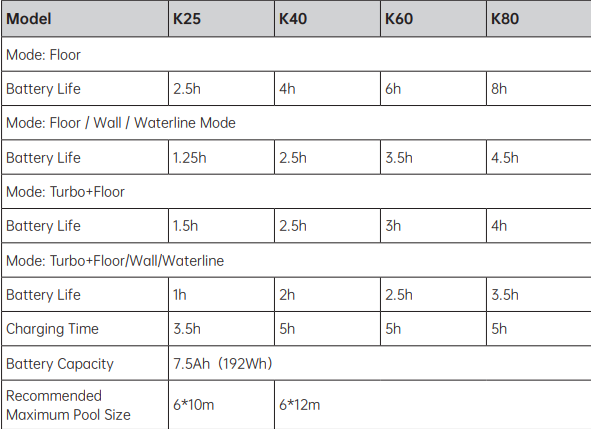
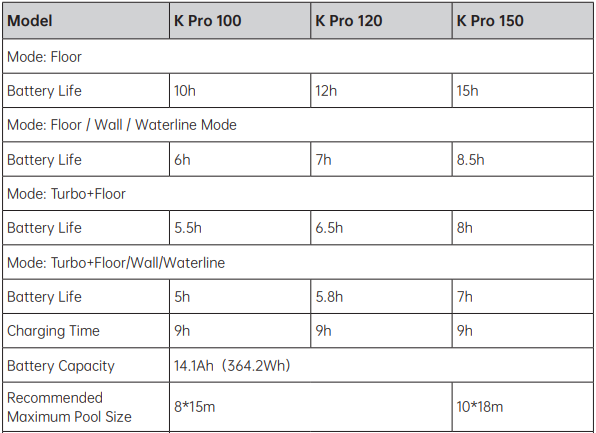
The the Pool Cleaner K can handle the floor, walls, and waterline of your pool.
Cleaning time depends on your pool’s size, shape, and the selected mode, but for most home pools, a typical cycle takes around 2 hours.
No, the Pool Cleaner K is designed to clean the floor, walls, and waterline of your pool.
It does not clean the water surface, so surface debris should be removed manually or with a separate skimmer.
App
You’ll receive update notifications directly in the iGarden Robotics App.
To check your current version: Go to Connected Device> Settings > Device Update.
Updates are automatically pushed to all compatible devices when available. If you aren’t seeing update prompts, your software is likely already up to date.
How to do OTA firmware upgrade (see video):
Before You Start
- Keep the robot on land (do NOT place it underwater).
- Ensure the robot is within range of a strong and stable Wi-Fi connection.
- Keep your phone within 3 ft (1m) of the robot while upgrading.
During the Upgrade
- The full OTA process takes about 10 minutes.
- The robot will automatically shut down and restart twice.
- Do not operate or move the robot during this time.
- For the very first upgrade, if the app shows a failure and the robot’s screen goes black, the upgrade is likely still running in the background.
- Simply wait 10 minutes.
- The robot will restart automatically once the upgrade completes.
After the Upgrade
You may need to pair the robot with App again if device is not shown in connected device page.
If the robot restarts to a black screen and cannot reboot:
- Provide iGarden Customer Support with your device’s Virtual ID.
- We will remotely resend the upgrade command to your device.
- Once you receive the new upgrade prompt in the app, follow the instructions to complete the OTA update.
- After restarting, your robot will be ready to use.
How to Find Your Virtual ID (see video):
https://youtube.com/shorts/Da35MA_ZVnI?feature=share
- Open the Device Information page.
- Tap the three dots in the upper-right corner.
- Select "Device Information".
- Take a screenshot and send it to customer support.
If the pool cleaner is operating underwater, it will show as “Offline” in the app because it cannot maintain a stable Wi-Fi connection while submerged. This is normal behavior and does not indicate a malfunction.
If the cleaner is not currently in operation and still shows “Offline,” please try deleting the paired device in the app and pairing it again. In some cases, especially after a firmware upgrade, the device may need to be re-paired to restore normal connectivity.
The app does not display real-time cleaning progress or completion status, because the robot cannot maintain a Wi-Fi connection while underwater.
After the cleaning cycle you set is finished, the pool cleaner will automatically park along the pool wall. You can then retrieve the unit and check the cleaning result.
The Pool Cleaner K is designed to function underwater, but its WiFi connectivity may weaken or disconnect when fully submerged due to signal interference. To ensure a smooth operation, we recommend setting up the cleaning mode before placing the cleaner into the pool.
We would like to clarify the difference between 2.4G and 5G Wi-Fi, as this can sometimes cause confusion.
- 4G and 5G are two different Wi-Fi bands, not mobile 5G.
For smart devices such as pool cleaning robots, connection stability is far more important than speed. These devices only transmit small amounts of data (such as status updates and commands), so high bandwidth is not required.
- 4G Wi-Fi offers several advantages for smart devices:
Longer signal range and stable connections.
Better ability to pass through walls and obstacles
Higher compatibility with home routers and IoT devices
For this reason, the pool cleaner models we currently sell are 2.4G Wi-Fi versions by design, to ensure better compatibility, stability, and reliable app control.
You’ll receive update notifications directly in the iGarden Robotics App.
To check your current version: Go to Connected Device> Settings > Device Update.
Updates are automatically pushed to all compatible devices when available. If you aren’t seeing update prompts, your software is likely already up to date.
How to do OTA firmware upgrade (see video):
https://www.youtube.com/watch?v=38jYhgWhHPk
Before You Start
- Keep the robot on land (do NOT place it underwater).
- Ensure the robot is within range of a strong and stable Wi-Fi connection.
- Keep your phone within 3 ft (1m) of the robot while upgrading.
During the Upgrade
- The full OTA process takes about 10 minutes.The robot will automatically shut down and restart twice.Do not operate or move the robot during this time.
- For the very first upgrade, if the app shows a failure and the robot’s screen goes black, the upgrade is likely still running in the background.Simply wait 10 minutes.The robot will restart automatically once the upgrade completes.
After the Upgrade
You may need to pair the robot with App again if device is not shown in connected device page.
If the robot restarts to a black screen and cannot reboot:
- Provide iGarden Customer Support with your device’s Virtual ID.
- We will remotely resend the upgrade command to your device.
- Once you receive the new upgrade prompt in the app, follow the instructions to complete the OTA update.
- After restarting, your robot will be ready to use.
How to Find Your Virtual ID (see video):
https://www.youtube.com/shorts/Da35MA_ZVnI
- Open the Device Information page.
- Tap the three dots in the upper-right corner.
- Select "Device Information".
- Take a screenshot and send it to customer support.
Video
https://www.youtube.com/watch?v=wFYBuV8ic8w
Step by Step Guide
① Download and register in the correct app
Search for [iGarden Robotics App], download, register an account, and log in.
(Note: The pool cleaner K is compatible with iGarden Robotics App. Some customers mistakenly download “iGarden App” from the App Store, which won’t pair.)
Download QR Code
② Enable Bluetooth & Location Services
Turn on Bluetooth and location services via your phone's control center or system settings.
③ Ensure you're connected to a 2.4 GHz Wi‑Fi network in a strong-signal area.
During pairing, both your phone and the robot must be on the same 2.4 GHz Wi‑Fi network.
After pairing, you may switch your phone to another Wi‑Fi or mobile network.
- How to check if your phone is on 2.4 GHz:
- -5 GHz networks often include "5G" in their name.
If both 2.4 GHz and 5 GHz share the same name, you'll need to check frequency settings:
- -On Android: Settings → Wi‑Fi → select your connected network and view frequency.
- -On iPhone: Log into your router’s admin page and check from there.
- If you can't connect your phone to 2.4 GHz: Use another phone to create a 2.4 GHz hotspot.
- -On Android: In hotspot settings, set the frequency band to 2.4 GHz (setting steps vary by brands).
- -On iPhone 12 or later: Settings → Personal Hotspot → enable "Maximize Compatibility" to enable 2.4 GHz. iPhone 11 and earlier use 2.4 GHz by default.
④ Turn on the robot Turn the bottom Switch from “Lock” to “Unlock.”
You'll hear a beep, and the control panel screen will light up.
⑤ Enter pairing mode on the robot
a. After power on, the power button's LED (middle button on the first row) should blink.
(If it goes off after inactivity, hold the power button for 3 seconds until you hear a beep and the LED starts blinking again.)
b. While the power button is blinking, hold the “Cleaning Mode” button (third button in the first row) for 3 seconds. After a beep, the robot enters app pairing mode.
⑥ Pair through the iGarden Robotics app
Open the app → tap “Add Device” → wait for the robot to appear in nearby devices.
⑦ Connect robot to Wi‑Fi
Tap “Add” on the device → enter Wi‑Fi name and password. Ensure this matches the phone's Wi-Fi network.
⑧ Pairing in progress
A blue progress circle will appear. Once pairing is complete, the app returns to the main screen and shows the robot as “Connected.”
If pairing fails after the circle completes, or it stalls for over 2 minutes: Restart the robot by turning the bottom switch, and try pairing again.
If it still doesn't pair, please send a video of the pairing process and a screenshot of your phone's Wi‑Fi settings to iGarden support email, and we'll help troubleshoot. In the meantime, you can control the robot manually.
⑨ Start cleaning
After setting modes in the app, press the power button on the robot—its LED will now stay solid. Place it in the pool within 3 minutes, and it will begin cleaning.
Please refer to the following link for details:
https://support.igarden.ai/hc/en-us/articles/5075905549982--Pool-Cleaner-K-Firmware-App-Release-Note-updated-2025-12
App: iGarden Robotics
Firmware Version: V XX.0.25
Updates & New Features:
- Shallow Platform Wall-Climbing Optimization
Improved cleaning logic to prevent the robot from flipping or getting stuck when climbing walls in shallow areas.
- Enhanced S-Shaped Cleaning Path for Irregular Pools
Optimized S-path navigation for pools with elliptical, diamond, or other irregular shapes, ensuring better coverage in both shallow and deep areas.
- Improved Water-Lift Detection & Safety Control
Updated control logic so the unit now stops immediately when lifted out of the water, enhancing operational safety.
- Slope Wall Cleaning Optimization
Refined algorithms to improve cleaning performance on sloped pool walls, increasing coverage and stability.
- Walking Motor Alarm Logic Update
Adjusted motor detection logic to reduce false alarms caused by temporary obstacles blocking the robot.
No. The region selected during registration cannot be changed afterward.
For data privacy and security compliance, customer information is stored in different regional data centers, so the region field is locked once your account is created.
If you have moved to another region or need to switch to a different region, you may: Delete your current account, and Re-register with the correct region.
If you need assistance with account deletion or re-registration, please contact iGarden customer support team to help.
Please power on the robot, ensure it is connected, and then try saving the settings again.
Need help? Contact iGarden Customer Support.
You have two options:
Option 1 – Separate Network Bands (Recommended):
- Log in to your router settings (common IPs: 192.168.0.1 or 192.168.1.1).
- Give the 2.4GHz and 5GHz bands different names (SSIDs).
- Connect both your phone and the Pool Cleaner to the 2.4GHz network.
Option 2 – Use a 2.4G Phone Hotspot:
Android: Go to hotspot settings and set the AP band to 2.4GHz.
iPhone 12 or later: Enable “Maximize Compatibility” in Personal Hotspot settings.
iPhone 11 or earlier: Hotspot uses 2.4GHz by default.
Need help? Contact iGarden Customer Support.
We would like to clarify the difference between 2.4G and 5G Wi-Fi, as this can sometimes cause confusion.
- 4G and 5G are two different Wi-Fi bands, not mobile 5G.
For smart devices such as pool cleaning robots, connection stability is far more important than speed. These devices only transmit small amounts of data (such as status updates and commands), so high bandwidth is not required.
- 4G Wi-Fi offers several advantages for smart devices:
Longer signal range and stable connections.
Better ability to pass through walls and obstacles
Higher compatibility with home routers and IoT devices
For this reason, the pool cleaner models we currently sell are 2.4G Wi-Fi versions by design, to ensure better compatibility, stability, and reliable app control.
The app does not display real-time cleaning progress or completion status, because the robot cannot maintain a Wi-Fi connection while underwater.
After the cleaning cycle you set is finished, the pool cleaner will automatically park along the pool wall. You can then retrieve the unit and check the cleaning result.
The Pool Cleaner K is designed to function underwater, but its WiFi connectivity may weaken or disconnect when fully submerged due to signal interference. To ensure a smooth operation, we recommend setting up the cleaning mode before placing the cleaner into the pool.
- Check your email address:
Make sure the email you entered is correct, without typos, missing characters, or extra spaces.
- Check your inbox and spam folders:
The verification code is sent from services@igardeniot.com.
Look in your inbox first. If you don’t see the email, check your spam, junk, or promotions folders, as it may have been filtered there.
- Avoid requesting too many codes:
Please wait about 2 minutes after requesting a code.
Requesting multiple times may cause you to receive several codes, and you might accidentally enter an older code that has already expired.
Operation
Once the cleaner is in the water and starts working, the control panel goes into sleep mode to save power, and the “On” button will flash. This is normal and indicates that the robot is running properly.
Our touchscreen is designed to be waterproof, but under strong sunlight—especially during summer—it may be difficult to clearly see the LED indicators.
To improve visibility, we recommend:
- Shielding the sunlight with your hand while adjusting the settings.
- Setting up the robot indoors or in a shaded area before placing it in the pool.
- Using the App to adjust cleaning modes, timers, or other settings, which is often easier in bright light.
We don’t recommend charging it outdoors. While the power supply is water-resistant, it’s not fully waterproof—so it shouldn’t be left out in the rain or near water.
For safety and to protect your equipment, please always charge your pool cleaner indoors or in a dry, covered area.
- Connect the original adapter to a power source (100–240V).
- Make sure the charging port is dry before connecting.
- Charge in an environment of 6°C–35°C (43°F–95°F).
- When all three green lights stay on, the cleaner is fully charged.
- Disconnect after charging and close the charging plug cover.
Tips:
- Use the original adapter only for safety and optimal performance.
- Recharge every 3 months if storing long-term.
No, you don’t need to turn off the bottom switch after daily use—the robot can remain powered on.
If you won’t be using the robot for an extended period, turn off the bottom switch and ensure proper storage.
- Remove the filter basket from the robot.
- To separate the dual-layer fine filter, gently release it from the snap buckles located on the bottom of the filter basket.
- To install the fine filter again, align it with the filter basket and press it firmly into the snap buckles until it is securely attached.
We recommend cleaning the filter basket after each use.
Remove all debris thoroughly to ensure optimal water flow and cleaning performance.
You can safely leave the iGarden pool cleaner in the pool during regular use thanks to its Full-Inverter technology and AI timer.
For best results:
- Empty the filter basket after each cleaning cycle.
- Remove the cleaner when adding pool chemicals, and return it only once chlorine and pH levels are balanced.
- Store indoors during long periods of non-use, like winter months.
- Locating the Handle More Easily
When retrieving the robot, the handle may appear hard to catch due to water refraction and reflections.
To help you position the hook correctly, use the roller brush as a reference point — the handle is located directly above the roller brush.
- Using the Hook Correctly
When lifting the robot with the hook:
Make sure the hook is aligned with the center of the handle before pulling upward.
Side lifting or hooking at an angle can cause the hook to slide off.
Once the pool cleaner finishes its cleaning cycle, it will automatically park itself at the edge of the pool for easy retrieval.
- Attach the retrieval hook to a suitable telescopic pole.
- Use the hook to lift the cleaner out of the water.
- Allow any excess water to drain before carrying or storing the unit.
Press the Cleaning Time button repeatedly until all three LED indicators are off.
When all LEDs are off, the cleaner enters Max Runtime Mode, meaning it will continue cleaning until the battery is low and it automatically returns to stop.
Before setting the AI Timer, please make sure you have selected your cleaning mode first.
Once the cleaning mode is set, you can choose the automatic cleaning schedule as follows:
AI Timer Options
1 Light ON
Auto-clean every 24 hours (daily)
2 Lights ON
Auto-clean every 48 hours (every 2 days)
3 Lights ON
Auto-clean every 72 hours (every 3 days)
The number of indicator lights turned on shows how often the cleaner will run automatically.
The Pool Cleaner K series offers four cleaning modes that determine which areas of the pool are cleaned and how the cleaning path is executed.
- Floor Only (Cleaning Mode LED - Bottom LED ON)
This mode focuses on cleaning the pool floor using an S-shaped path for most of the cleaning time.
- Wall Only (Cleaning Mode LED - Top LED ON)
In this mode, the robot only cleans the pool walls and follows a “U-shaped” climbing path to ensure vertical surfaces are cleaned efficiently.
- Wall + Floor (Cleaning Mode LED - Two LEDs ON)
This mode first cleans the walls and waterline, then moves to the pool floor for S-shaped coverage.
- Full Coverage (Cleaning Mode LED - All LEDs OFF)
This is the most comprehensive mode, where the cleaner sequentially covers the floor, walls, and waterline, including tanning ledges (water depth > 40 cm (1.3 ft)), to ensure full pool cleaning coverage.
- Power On: Toggle the bottom switch to Unlock.
- Set & Start: Hold the ON/OFF button for 3 seconds to wake the cleaner (LEDs will flash). Select your options, then tap the ON/OFF button again to start.
- Deploy: Place the cleaner in the pool within 3 minutes.
Yes, you can manually use the pool cleaner K without Wi-Fi.
All cleaning modes and basic functions can be started directly from the LED buttons on the device. Wi-Fi is only needed for advanced features such as app control, and OTA firmware updates.
We recommend cleaning the filter basket after each use.
Remove all debris thoroughly to ensure optimal water flow and cleaning performance.
Our touchscreen is designed to be waterproof, but under strong sunlight—especially during summer—it may be difficult to clearly see the LED indicators.
To improve visibility, we recommend:
- Shielding the sunlight with your hand while adjusting the settings.
- Setting up the robot indoors or in a shaded area before placing it in the pool.
- Using the App to adjust cleaning modes, timers, or other settings, which is often easier in bright light.
- Locating the Handle More Easily
When retrieving the robot, the handle may appear hard to catch due to water refraction and reflections.
To help you position the hook correctly, use the roller brush as a reference point — the handle is located directly above the roller brush.
- Using the Hook Correctly
When lifting the robot with the hook:
Make sure the hook is aligned with the center of the handle before pulling upward.
Side lifting or hooking at an angle can cause the hook to slide off.
- If You’re Using the Black/Old White Hook Version
The older black hook may detach more easily.
You can contact iGarden Customer Support to receive the upgraded white hook, which offers better grip and easier to be seen underwater.
When contacting for white hook, please provide us:
- Your order number
- Your current shipping address
Once the pool cleaner finishes its cleaning cycle, it will automatically park itself at the edge of the pool for easy retrieval.
- Attach the retrieval hook to a suitable telescopic pole.
- Use the hook to lift the cleaner out of the water.
- Allow any excess water to drain before carrying or storing the unit.
Press the Cleaning Time button repeatedly until all three LED indicators are off.
When all LEDs are off, the cleaner enters Max Runtime Mode, meaning it will continue cleaning until the battery is low and it automatically returns to stop.
Yes! After finishing a cleaning cycle, the Pool Cleaner K will dock along the pool edge.
It may not always stop at the exact same spot, as the final position depends on the pool’s shape and layout.
Once the cleaner is in the water and starts working, the control panel goes into sleep mode to save power, and the “On” button will flash. This is normal and indicates that the robot is running properly.
- Power On: Toggle the bottom switch to Unlock.
- Set & Start: Hold the ON/OFF button for 3 seconds to wake the cleaner (LEDs will flash). Select your options, then tap the ON/OFF button again to start.
- Deploy: Place the cleaner in the pool within 3 minutes.
- Connect the original adapter to a power source (100–240V).
- Make sure the charging port is dry before connecting.
- Charge in an environment of 6°C–35°C (43°F–95°F).
- When all three green lights stay on, the cleaner is fully charged.
- Disconnect after charging and close the charging plug cover.
Tips:
- Use the original adapter only for safety and optimal performance.
- Recharge every 3 months if storing long-term.
No, you don’t need to turn off the bottom switch after daily use—the robot can remain powered on.
If you won’t be using the robot for an extended period, turn off the bottom switch and ensure proper storage.
You can safely leave the iGarden pool cleaner in the pool during regular use thanks to its Full-Inverter technology and AI timer.
For best results:
- Empty the filter basket after each cleaning cycle.
- Remove the cleaner when adding pool chemicals, and return it only once chlorine and pH levels are balanced.
- Store indoors during long periods of non-use, like winter months.
We don’t recommend charging it outdoors. While the power supply is water-resistant, it’s not fully waterproof—so it shouldn’t be left out in the rain or near water.
For safety and to protect your equipment, please always charge your pool cleaner indoors or in a dry, covered area.
Yes, you can manually use the pool cleaner K without Wi-Fi.
All cleaning modes and basic functions can be started directly from the LED buttons on the device. Wi-Fi is only needed for advanced features such as app control, and OTA firmware updates.
Before setting the cleaning timer, please make sure you have selected your cleaning mode first.
Once the cleaning mode is set, you can choose the automatic cleaning schedule as follows:
Cleaning Timer Options
1 Light ON
Auto-clean every 24 hours (daily)
2 Lights ON
Auto-clean every 48 hours (every 2 days)
3 Lights ON
Auto-clean every 72 hours (every 3 days)
The number of indicator lights turned on shows how often the cleaner will run automatically.
Troubleshooting
Troubleshooting Tips
Check where the floating occurs:
- First confirm whether the floating happens on a flat pool floor or in a shallow-to-deep transition / sloped area.
- If it happens on a flat surface:
If the cleaner briefly floats and then stabilizes and settles back onto the floor, this is normal behavior and no action is required.
- If it happens in a slope or transition area:
Place the cleaner back on a flat shallow section of the pool and restart it.
Then observe again under flat-surface conditions to confirm normal operation.
If the issue continues (repeated floating or cannot sink), please provide:
- A short video showing the robot’s behavior
- A clear image of your pool layout
Troubleshooting Tips:
- Robot Battery Indicator Light does NOT light up
- If the charger LED indicator light is ON:
Restart the robot and try charging again.
- If the charger LED indicator light is OFF:
Make sure the charger is firmly connected to both the wall outlet and the robot charging port.
- Robot Battery Indicator Light ON, but the battery level does not increase
- Restart the robot and leave the charger connected continuously for about 2 hours, then check whether the battery level begins increasing afterward.
- Robot Battery Indicator Light ON, battery immediately shows full after plugging in:
- Restart the robot, as this may help resolve temporary system glitches.
- Temperature may be too low and could trigger battery protection mode. Please move the robot indoors to an environment above 10°C (50°F) for about 30 minutes, then try charging again.
- Robot Battery Indicator shows fully charged, but the App displays less than 100% battery
- Remove the robot from the app and pair it again.
- Check for firmware updates and install the latest version if available.
If the issue continues, please provide:
- A short video showing the Robot Battery Indicator behavior while connected to the charger
- If the charger has an LED indicator light, please also provide a photo showing the LED status while charging
Please carefully follow the pairing instruction article and video guide:
[Pool Cleaner K] How to Pair with iGarden Robotics App or Connect with Wi-Fi and Bluetooth_Video & Guide
https://support.igarden.ai/hc/en-us/articles/4786227376670--Pool-Cleaner-K-How-to-Pair-with-iGarden-Robotics-App-or-Connect-with-Wi-Fi-and-Bluetooth-Video-Guide
Troubleshooting Tips:
- Cannot find the nearby device during searching
- Make sure you downloaded the iGarden Robotics App. Some customers mistakenly download the iGarden App, which is not compatible with the K series.
- Make sure Bluetooth and Wi-Fi are enabled on your phone.
- Enter pairing mode: After power on, the power button's LED (middle button on the first row) should blink, then you can operate on the phone.
- Pairing fails or the device cannot be added after the blue loading circle completes
- Make sure your Wi-Fi network is 2.4GHz.
If your router combines 2.4GHz and 5GHz under the same Wi-Fi name, try temporarily creating a separate 2.4GHz network or use a 2.4GHz mobile hotspot for pairing.
- Ensure the Wi-Fi signal is strong and stable during pairing.
- Make sure the Wi-Fi password is entered correctly.
- Restarting the robot may also help resolve temporary pairing issues.
You may try pairing 2-3 times. If the issue still persists, please provide:
- A screenshot of the pairing failure page
- A screenshot of your phone’s Wi-Fi settings page showing a 2.4GHz network, with Bluetooth and Location Services enabled
Troubleshooting tips:
- Overloaded Filter Basket
If the filter basket is full, water may bypass it, allowing debris to leak back into the pool. Please empty the basket.
- Incorrectly Installed or Damaged Filter
If the filter is not inserted properly, or if there are tears/holes, debris can escape. Check for correct installation and inspect for damage.
- Debris are Small or Sticky
Fine sand or clumps of algae may be too small for the filter to contain, causing leaks.
Please install the 60μm filter layer for fine debris cleaning.
If the issue persists or you need a replacement/upgrade for a finer filter. please provide:
- A photo showing the debris leaking
- A photo of the filter basket and your shipping address (for replacement or upgrade; charges may apply depending on your warranty)
This is more likely to happen in pools with narrow stairs, curved steps, bench or ledge designs, where the robot may not clean these areas. In most cases, the robot will reverse and move away automatically after a few minutes, which is normal behavior. However, if the stairs are too narrow, the robot may become temporarily stuck in the stair area.
We recommend using Floor Only mode first for pools with complex stair or entry-step designs, and ensuring the water depth around the stairs is at least 40 cm (1.3 ft) to support proper movement and self-righting performance.
You can also check for OTA updates in the app, as software improvements may improve compatibility with different pool layouts and stair structures.
If you would like us to evaluate compatibility with your pool stairs or entry area, please provide:
- A photo or short video showing the robot’s behavior
- A clear image of your pool layout and stair area
This is more likely to happen in pools with narrow stairs, curved steps, bench or ledge designs, where the robot may not clean these areas. In most cases, the robot will reverse and move away automatically after a few minutes, which is normal behavior.
If you would like us to evaluate compatibility with your pool stairs or entry area, please provide:
- A photo or short video showing the robot’s behavior
- A clear image of your pool layout and stair area
This is more likely to happen in pools with narrow stairs, curved steps, bench or ledge designs. Pool stairs and irregular transitions may sometimes interfere with the robot’s navigation and cause it to become stuck temporarily. In most cases, the robot will automatically reverse and move away after a few minutes.
To reduce the chance of getting stuck, we recommend using Floor Only mode first in pools with complex step areas, and ensuring the water depth around the stairs is at least 40 cm (1.3 ft) for proper movement and self-righting performance.
You can also check for OTA updates in the app, as software improvements may enhance compatibility with different pool layouts and stair designs.
If the issue continues, please provide:
- A photo or short video showing the robot’s behavior
- A clear image of your pool layout and stairs area
- Please confirm if the problem happens in every cleaning cycle
This behavior can be caused when your pool has slopes, irregular shapes, or obstacles—causing deviations from the ideal S‑shaped path. In such cases, the unit may keep cleaning over the same area, especially in complex layouts.
Troubleshooting tips:
You can check for OTA updates in the app to improve compatibility with your pool.
If the issue continues, please provide:
- A photo or short video showing the robot’s behavior
- A clear image of your pool layout
In Floor Only mode, the cleaner is not actually trying to climb the wall. This behavior is usually caused by the shape of the pool bottom.
In pools with a bowl-shaped or sloped design, when the cleaner moves up the incline, it may interpret the surface as part of the floor rather than a wall. As a result, it continues moving forward before changing direction, which can look like it is attempting to climb.
This is normal behavior and does not affect performance. When wall cleaning mode is selected, the cleaner will still properly climb and clean the walls as expected.
Troubleshooting tips:
- If the robot shows an error code, please restart the robot first and check whether the issue is resolved.
- Mode Setting: Make sure the cleaner is in “Wall” mode and not in “Floor Only” mode.
- Battery Level: Low battery (<30%) restricts the cleaner to floor mode.
- Tracks, Roller & Impeller: Inspect the tracks, roller brush, and impeller for debris, blockage, or wear (visual inspection only; disassembly is not required). Also make sure the charging port cover is fully inserted and properly sealed.
- Pool Wall Material: Extremely smooth pool surfaces (such as certain glass tiles or polished fiberglass) or walls with slight algae buildup can reduce track traction, making it difficult for the robot to grip and climb.
- Wall Ledges and Slopes: Check your pool wall for ledges, as they can block the robot from reaching the waterline. Additionally, check if your pool floor has steep slopes. If the robot transitions to the wall at an angle due to a sloped floor, gravity may cause it to tilt and slide to one side during the climb.
If all the above settings and conditions are correct, please try the following steps:
- Clean the filter thoroughly: Rinse the filter basket from the outside toward the inside (If available, use a high-pressure water hose for thorough cleaning).
- Check the fine filter layer: If you are using the dual-layer filter, it may clog more easily under heavy debris conditions. You may remove it and use only the 180μm filter basket unless fine particle cleaning is required.
Note: If your pool contains heavy debris or excessive algae, we recommend cleaning the floor first before running wall mode to reduce filter blockage.
- Enable Turbo Mode: Turn on Turbo Mode to increase suction power and improve wall-climbing performance.
- Check firmware updates: Certain sloped or curved wall designs may affect climbing performance. You can also check for OTA updates in the app to ensure the latest performance optimization for your pool conditions.
If the issue continues, please provide:
- A short video showing the robot’s behavior
- A clear image of your pool layout
- A clear image of robot mode setting
- A screenshot of the robot firmware version in the app
- Whether the robot fails to climb all walls or only specific areas of the pool
Troubleshooting tips:
- Overloaded Filter: A full or clogged filter can affect the robot’s balance and movement, so please clean it.
- Insufficient Water Level: In shallow areas, the self-righting function may not work properly. Please ensure a minimum water depth of 40 cm (1.3 ft) on the shallow platform for optimal performance.
- Pool Structure (Curved walls or stairs): When the robot climbs curved walls or steps, the tracks may not fully attach to the surface, which can sometimes cause it to flip over.
- Waterline Alignment: If the waterline is too close to the pool coping, the robot may not have enough space to climb and scrub the waterline properly, which can lead to flipping.
You can check for OTA updates in the app to ensure the latest performance improvements for your pool conditions.
If the issue continues, please provide:
- A photo or short video showing the robot’s behavior
- A clear image of your pool layout and circle the area when flip happens
- Your order number or SN number
Troubleshooting tips:
- Low Battery: The robot will shut down if the battery is low. Test after recharging it.
- Error code: Restart the robot first and check whether the issue is resolved.
- Stops After a Few Minutes:
- Stops in shallow areas
- If the water depth is below 40 cm (1.3 ft), the robot may not be able to return to deeper areas properly.
- Stops in deep areas
- Complex pool layouts, such as steep slopes, inclined walls, curved transitions, or obstacles, may affect the robot’s normal navigation path and cause it to stop unexpectedly.
- Stops Near a Drain
- Turn off the pool filtration system while cleaning.
For above issues, you can check for OTA firmware updates in the app, as software improvements may improve compatibility with different pool layouts.
If the issue continues, please provide:
- A photo or short video showing the robot’s behavior and the location where it stops.
- A clear image of your pool layout.
Troubleshooting tips:
- Check if there is an error code, and restart the robot.
- Clear obstacles in the pool if any.
- Clean the filter basket.
- Inspect the tracks, roller brush, and impeller for debris or damage.
If the issue continues, please provide:
- A short video showing the robot’s behavior
- A clear image of your pool layout
Troubleshooting tips:
- Lift the robot out of the water – the water sensor in the wheel disables the touchscreen when submerged.
- Dry the touchscreen completely, as moisture can affect responsiveness.
- Switch off and then back on – this often resolves temporary glitches.
If the issue continues, please provide:
- A photo or short video showing the robot’s behavior
If your Pool Cleaner K shows an error code, here’s what each one means:
E1: Left drive issue
E2: Right drive issue
E3: Water pump issue
E4: Control panel communication issue
E5: Infrared sensor issue
E6: Water sensor issue
Troubleshooting tips:
Try turning the power switch at the bottom OFF, then ON again to restart the cleaner.
If the issue continues, please provide:
1. A photo or short video showing the robot’s behavior
Troubleshooting Tips:
- Heavy debris remains
- The Pool Cleaner is primarily designed for daily maintenance cleaning rather than removing extremely heavy debris in a single cycle.
- Run the pool pump and filtration system for several hours first to remove a large amount of debris and improve water conditions.
- Use Floor Only mode and extend the cleaning time for better bottom coverage.
- Remove the ultra-fine filter layer to avoid clogging, which may reduce suction performance.
- Fine sand, algae, or ultra-fine debris remains
- A small amount of remaining ultra-fine debris may be normal. Increasing cleaning frequency is recommended for better long-term maintenance results.
- Install the ultra-fine filter layer for improved fine debris collection.
- Enable Turbo Mode to increase suction power.
- Large debris remains
- If the debris is larger than the cleaner’s water inlet size, it cannot be collected and will require manual removal.
- Remove the ultra-fine filter layer to prevent clogging and suction reduction.
- For heavier debris such as small pebbles or acorns, enable Turbo Mode to improve suction performance.
- Lightweight debris such as leaves may be pushed away by water movement while the robot is operating. Extending the cleaning time and enabling Turbo Mode can help improve cleaning coverage and debris pickup.
- Stubborn attached stains
- If the stains remain attached to the pool surface, manual brushing or cleaning may still be required.
- Certain areas are not cleaned
- Stairs:
Narrow steps, curved stairs, or large height transitions may prevent the robot from climbing or staying stable on the stairs. This is normal behavior, and manual cleaning may be required.
- Corners, seams, and tight edges:
Certain wall seams, corners, and tight transition areas may not be fully reachable by the robot. Manual cleaning is recommended for these areas.
- Some areas are missed
Complex pool layouts may cause the robot to repeatedly clean certain areas while missing others.
Please check for available OTA firmware updates in the app, as software optimization may improve navigation and pool coverage performance.
If the issue continues, please provide:
- A short video showing the robot’s behavior while cleaning the debris
- A clear photo of your pool layout
- A clear photo showing the remaining debris in the pool
Troubleshooting Tips:
- If the robot is NOT moving:
- Low Battery:
Make sure the robot is fully charged before use.
- Sleep Mode:
Check whether the cleaning settings were properly saved before placing the robot into the water. After setup, the robot must be placed into the pool within 3 minutes, otherwise it will automatically enter sleep mode.
- Impeller, Tracks & Roller Brush:
Turn off the robot and inspect the impeller, tracks, and roller brush for debris, blockage, or wear. Clean any obstruction before restarting the cleaner.
- If the robot is moving but not picking up debris:
- Blocked Water Inlet & Clogged Filter:
Clear any blockage from the water inlet and clean the filter thoroughly. Fine debris may clog the filter and restrict water flow, which can significantly reduce suction performance.
If the issue continues, please provide:
- A short video showing the robot’s behavior
- A clear image of your pool layout
Battery life can vary depending on the Pool Cleaner model (please refer to your user manual for model-specific runtime) and may differ from laboratory test results due to real-world pool conditions and usage patterns.
- Cleaning Mode: Using Turbo, Full coverage modes consumes more power.
- AI Timer mode: The battery life will be reduced because the robot continues to consume battery power in Sleep mode.
- Filter Maintenance: A clogged filter makes the robot work harder. Clean it regularly.
- Large pools or pools with complex layouts, slopes, ledges, stairs, or obstacles may require longer cleaning paths and additional maneuvering, which can increase battery consumption.
- Water Temperature: Cold water (<59°F / 15°C) can reduce battery performance.
- Battery Aging: Over time, batteries gradually lose capacity.
If the issue persists, please provide:
- Your pool size (length × width).
- A clear photo of your pool layout.
- After cleaning the filter and fully charging the robot, run a test using Floor Only Mode and provide the actual runtime observed.
- Your usual cleaning mode settings and the runtime you expect per charge in that mode.
- If the switch is difficult to operate with your finger:
- You may use a small tool or wrap a cloth around the switch to increase friction and make it easier to turn.
- If the switch is wet, please wipe it completely dry before operating it
- For long-term storage, you may turn off the bottom switch. For daily use, it is sufficient to turn off the touchscreen power button only.
- If the switch feels stuck or won’t turn:
- Over time, mud, fine sand, or small debris may accumulate around the switch mechanism.
- Inspect the area around the switch to see if anything is trapped inside.
- Gently remove any debris and try operating the switch again.
If the issue persists, please provide:
- A clear image show the bottom switch.
Due to its low chassis, your robot may sometimes get caught on the drain cover and be unable to unstick itself automatically. In such cases, you can manually help the robot get unstuck.
Additionally, the pool drain’s suction might pull the robot toward the drain, interfering with its cleaning function. To prevent this, we recommend closing the pool drain while the robot is in operation. This will help reduce the suction effect, ensuring the robot performs as intended.
Troubleshooting tips:
- Low Battery – Ensure the device is fully charged.
- Blocked Water Inlet & Clogged Filter – Clear any obstructions and clean or replace the filter.
- Impeller Obstruction & Tracks/Roller Brush – Turn off the robot, clean any debris from the impeller, and check the tracks or roller brush for obstructions or wear.
If the issue continues, please contact iGarden Customer Support and provide:
- A photo or short video showing the robot’s behavior
- A clear image of your pool layout
- Your order number or SN number
Troubleshooting tips:
- Overloaded Filter Basket
If the filter basket is full, water may bypass it, allowing debris to leak back into the pool. Please empty the basket.
- Incorrectly Installed or Damaged Filter
If the filter is not inserted properly, or if there are tears/holes, debris can escape. Check for correct installation and inspect for damage.
- Debris are Small or Sticky
Fine sand or clumps of algae may be too small for the filter to contain, causing leaks.
If the issue persists or you need a replacement/upgrade for a finer filter. Please contact iGarden Customer Support and provide:
- A photo showing the debris leaking
- A photo of the filter basket and your shipping address (for replacement or upgrade; charges may apply depending on your warranty)
- Your order number or SN number
This behavior can be caused when your pool has slopes, irregular shapes, or obstacles—causing deviations from the ideal S‑shaped path. In such cases, the unit may keep cleaning over the same area, especially in complex layouts.
Troubleshooting tips:
You can check for OTA updates in the app to improve compatibility with your pool.
If the issue continues, please contact iGarden Customer Support and provide:
- A photo or short video showing the robot’s behavior
- Photo of pool layout
- App software version screenshot
- Your order number or SN number
Troubleshooting tips:
- Mode Setting: Make sure the cleaner is set to “Floor/Wall Mode.” If it is set to “Floor Only”, it will not climb walls.
- Battery Level: When the battery is below 30%, the cleaner automatically switches to floor-only mode. Fully charge the cleaner and try again.
- Filter: A blocked or overloaded filter basket (especially fine sand) reduces suction power. Remove and rinse the filter basket before the next cycle.
- Charging Plug Cover: Ensure the charging plug cover is fully sealed. A loose cover can prevent climbing.
- Tracks & Roller: Confirm the tracks/rollers rotate smoothly. Replace worn parts if needed.
Some sloped walls, or curved walls can reduce climbing performance. You may check for OTA software updates in the app to improve performance.
If the issue continues, please contact iGarden Customer Support and provide:
- A short video showing the robot’s behavior
(if possible)
- Photo of pool layout
- Filter basket photo after cleaning cycle
- A screenshot of the device software version in App to check if an OTA needed
- Your order number or SN number
Troubleshooting tips:
- Overloaded Filter: A full or clogged filter basket may cause imbalance and flipping. Clean the filter regularly.
- Insufficient Water Level: If the robot enters shallow areas (< 3.3 ft / 1 m), the self-righting feature may not work.
- You can also check for OTA updates in the app to improve compatibility with your pool.
If the issue continues, please contact iGarden Customer Support and provide:
- A photo of flipping area or short video showing the robot’s behavior
- Photo of pool layout
- Your order number or SN number
Troubleshooting tips:
- Low Battery:
The robot will shut down if the battery is low. Connect the robot to the original charger and allow it to fully charge before turning it on again.
- Sleep Mode:
- Once powered on, the robot must be placed into the water within 3 minutes. If not, it will enter sleep mode and appear to shut off.
- The robot will enter sleep mode automatically once a scheduled or manual cleaning cycle finishes.
- Stops After a Few Minutes:
If the robot shuts down shortly after starting a cycle, you can perform an OTA update through the app if avaliable to improve pool compatibility.
If the issue continues, please contact iGarden Customer Support and provide:
- A photo or short video showing the robot’s behavior
- A clear image of your pool layout
- Your order number or SN number
Troubleshooting tips:
- Check if there is an error code, and restart the robot.
- Clear obstacles in the pool if any.
- Inspect the tracks, roller brush, and impeller for debris or damage.
If the issue continues, please contact iGarden Customer Support and provide:
- A short video showing the robot’s behavior
- A clear image of your pool layout
- Your order number or SN number
Troubleshooting tips:
- Lift the robot out of the water – the water sensor in the wheel disables the touchscreen when submerged.
- Dry the touchscreen completely, as moisture can affect responsiveness.
- Switch off and then back on – this often resolves temporary glitches.
If the issue continues, please contact iGarden Customer Support and provide:
- A photo or short video showing the robot’s behavior
- Your order number or SN number
If your Pool Cleaner K shows an error code, here’s what each one means:
E1: Left drive issue
E2: Right drive issue
E3: Water pump issue
E4: Control panel communication issue
E5: Infrared sensor issue
E6: Water sensor issue
Troubleshooting tips:
Try turning the power switch at the bottom OFF, then ON again to restart the cleaner.
If the issue continues, please contact iGarden Customer Support and provide:
- A photo or short video showing the robot’s behavior
- Your order number or SN number
Battery life can vary depending on the Pool Cleaner model (check your user manual for specifics) and may be affected by several factors:
- Cleaning Mode: Using wall, waterline, or Turbo modes consumes more power.
- Filter Maintenance: A clogged filter makes the robot work harder. Clean it regularly.
- AI Timer On: When the AI Timer is enabled, the battery life will be reduced because the robot continues to consume battery power in standby mode.
- Water Temperature: Cold water (<59°F / 15°C) can reduce battery performance.
- Battery Aging: Over time, batteries gradually lose capacity.
If the issue persists, please contact iGarden Customer Support and provide:
- Pool size (length × width) and a photo of your pool layout.
- The actual battery life observed and confirmation that the unit was fully charged before use.
- Your cleaning mode setting and how many hours of cleaning per charge are you expecting in this mode?
- Your order number or SN number.
- If the switch is difficult to operate with your finger:
- You may use a small tool or wrap a cloth around the switch to increase friction and make it easier to turn.
- If the switch is wet, please wipe it completely dry before operating it
- For long-term storage, you may turn off the bottom switch. For daily use, it is sufficient to turn off the touchscreen power button only.
- If the switch feels stuck or won’t turn:
- Over time, mud, fine sand, or small debris may accumulate around the switch mechanism.
- Inspect the area around the switch to see if anything is trapped inside.
- Gently remove any debris and try operating the switch again.
If the issue persists, please contact iGarden Customer Support and provide:
- A clear image show the bottom switch.
- Your order number or SN number.
Maintenance
The steps to clean the impeller are as follows:
- Take out the filter basket.
- Use a Phillips screwdriver to unscrew and take off the deflector cap.
- Take out the deflector.
- Use tweezers to clear any debris from the impeller.
- Reassemble all the parts in the correct order.
Note:
The power switch MUST be turned to OFF before performing any cleaning or maintenance on the impeller.
Here are the steps:
- Release the tabs from the holes, then take out the brushes.
- Install the tabs under the brush.
- Roll the brush around its holder, slide the tabs into the connecting holes, and then pull the end of each tab until its edge passes through the gap.
- Dry the cleaner completely before storing.
- Store in a place with temperatures between –10°C and 45°C (14°F–113°F) and 30%–70% humidity.
- Neatly coil the cable and avoid any twists or kinks.
- Recharge every 3 months.
- Dry the cleaner completely before storing.
- Store in a place with temperatures between –10°C and 45°C (14°F–113°F) and 30%–70% humidity.
- Neatly coil the cable and avoid any twists or kinks.
- Recharge every 3 months.
Aftersales
The Pool Cleaner K Series includes the following warranty coverage:
Standard Units:
3-Year Full Machine Replacement Protection for the main unit
6-Month Warranty for consumable parts
Manufacturer Renewed Units:
1-Year Full Machine Replacement Protection for the main unit
6-Month Warranty for consumable parts
If you have extended your warranty through a care service plan or promotional campaign, please refer to your warranty confirmation for the specific coverage details.
We currently offer replacement roller brushes, tracks, and hooks for purchase.
For U.S. customers: You can order these accessories directly from our official Amazon store: https://www.amazon.com/s?me=A3HST7O4F1IHP8&marketplaceID=ATVPDKIKX0DER
Please confirm the compatibility before purchasing.
On the Product: Take out the filter basket, and you will find the serial number (SN) on the bottom of the robot.
User Guide
Video
https://www.youtube.com/watch?v=wFYBuV8ic8w
Step by Step Guide
- Download and register in the correct app
Search for [iGarden Robotics App], download, register an account, and log in.
(Note: The pool cleaner K is compatible with iGarden Robotics App. Some customers mistakenly download “iGarden App” from the App Store, which won’t pair.)
- Enable Bluetooth & Location Services
Turn on Bluetooth and location services via your phone's control center or system settings.
- Ensure you're connected to a 2.4 GHz Wi‑Fi network in a strong-signal area.
During pairing, both your phone and the robot must be on the same 2.4 GHz Wi‑Fi network.
After pairing, you may switch your phone to another Wi‑Fi or mobile network.
- How to check if your phone is on 2.4 GHz:
- -5 GHz networks often include "5G" in their name.
If both 2.4 GHz and 5 GHz share the same name, you'll need to check frequency settings:
- -On Android: Settings → Wi‑Fi → select your connected network and view frequency.
- -On iPhone: Log into your router’s admin page and check from there.
- If you can't connect your phone to 2.4 GHz: Use another phone to create a 2.4 GHz hotspot.
- -On Android: In hotspot settings, set the frequency band to 2.4 GHz (setting steps vary by brands).
- -On iPhone 12 or later: Settings → Personal Hotspot → enable "Maximize Compatibility" to enable 2.4 GHz. iPhone 11 and earlier use 2.4 GHz by default.
- Turn on the robot Turn the bottom Switch from “Lock” to “Unlock.”
You'll hear a beep, and the control panel screen will light up.
- Enter pairing mode on the robot
- After power on, the power button's LED (middle button on the first row) should blink.
(If it goes off after inactivity, hold the power button for 3 seconds until you hear a beep and the LED starts blinking again.)
- While the power button is blinking, hold the “Cleaning Mode” button (third button in the first row) for 3 seconds. After a beep, the robot enters app pairing mode.
- Pair through the iGarden Robotics app
Open the app → tap “Add Device” → wait for the robot to appear in nearby devices.
- Connect robot to Wi‑Fi
Tap “Add” on the device → enter Wi‑Fi name and password. Ensure this matches the phone's Wi-Fi network.
- Pairing in progress
A blue progress circle will appear. Once pairing is complete, the app returns to the main screen and shows the robot as “Connected.”
If pairing fails after the circle completes, or it stalls for over 2 minutes: Restart the robot by turning the bottom switch, and try pairing again.
If it still doesn't pair, please send a video of the pairing process and a screenshot of your phone's Wi‑Fi settings to iGarden support email, and we'll help troubleshoot. In the meantime, you can control the robot manually.
- Start cleaning
After setting modes in the app, press the power button on the robot—its LED will now stay solid. Place it in the pool within 3 minutes, and it will begin cleaning.
No matching FAQs found.
General
No, the Pool Cleaner KN is designed to clean the floor, walls, and waterline of your pool.
It does not clean the water surface, so surface debris should be removed manually or with a separate skimmer.
The the Pool Cleaner KN can handle the floor, walls, and waterline of your pool.
Cleaning time depends on your pool’s size, shape, and the selected mode, but for most home pools, a typical cycle takes around 2 hours.
All KN Series models support floor, wall, and waterline cleaning. They all include App control function.
The main difference lies in battery capacity and runtime.
Please refer to the manual for full specifications.
The Pool Cleaner KN is designed to handle most common pool debris. Its standard 180µm filter basket efficiently collects hair, leaves, small twigs, flower petals, grass clippings, and even tiny insects.
If your pool has finer particles like sand, we offer optional fine filters — just reach out to iGarden Customer Support, and we’ll help you find the best solution for your pool.
No. It is equipped with soft tracks. During the development process, we extensively tested it on various plaster surfaces and found no scratches under normal use conditions.
Yes! The iGarden pool cleaner works safely in the rain.
However, we recommend running the pool cleaner after rainning, so it can remove leaves and other debris that may have fallen into the pool while raining.
Yes! The iGarden pool cleaner works perfectly with infinity pools.
Its smart navigation system keeps it cleaning efficiently and safely, so you can enjoy crystal-clear water without any extra effort.
It depends on how much debris is in your pool. As a general guideline, running the cleaner once or twice a week keeps your pool clean and reduces manual maintenance.
We’d love to help you find the perfect iGarden cleaner for your pool!
To make the best recommendation, please share a few quick details with us:
Pool size & shape – (photos are helpful)
Cleaning needs – floor, walls, waterline, or stairs
Typical debris – leaves, sand, oil stains, etc.
Battery preference – how long you’d like it to run per charge
Your budget
Once we have this info, our team will match you with the model that fits your pool perfectly.
All iGarden pool cleaners undergo a 100% water inspection before shipping to ensure they work perfectly.
Because of this, you might notice small water droplets inside the packaging—this is completely normal and nothing to worry about.
We currently do not offer a caddy or caddy cover accessory for the Pool Cleaner. You can buy a universal one on Amazon.
Our product does not include a pole.
This is also common across most wireless pool cleaning robots, as pool depths vary greatly, and customers typically select a pole length that suits their specific pool.
To ensure compatibility with the hook, we recommend using a pole with a 1-inch diameter.
Yes, the pool cleaner is compatible with Pebble Tec surfaces as long as the surface is smooth and free of protrusions.
For the best assessment, we recommend sending a close-up photo of your pool surface so we can confirm compatibility before use.
The Pool Cleaner KN is great at cleaning your main pool floor and walls, ensuring a clear pool with minimal effort.
However, because of its size and design, it may not reach narrow areas like stairs or tight corners — this is completely normal for robotic cleaners.
For best results, we recommend occasionally brushing those spots manually to keep your entire pool perfectly clean.
The battery is not replaceable.
Because the pool cleaner operates underwater, the battery pack is fully sealed inside a glued, waterproof plastic enclosure to ensure safety and prevent water ingress. For this reason, replacement batteries are not sold separately, and the internal battery cannot be removed or replaced by users.
If you are experiencing battery or runtime issues, please contact iGarden Customer Support for assistance.
The pool cleaner is designed primarily for daily maintenance cleaning. If your pool is extremely dirty—for example, after winterization or a major storm—we recommend doing some basic pre-cleaning first.
This may include manually removing large debris or running your pool pump and filter system to clear heavy contamination.
Once the pool is partially cleaned, the robot will perform more effectively and help maintain a clean pool on a daily basis.
The KN Series has Full Coverage cleaning modes, including shallow areas.
As long as the water depth exceeds 0.4 meters (1.3 ft), the cleaner can operate effectively in these areas.
1. To recommend the best option for you, please provide:
Photos of your pool (to understand its shape and structure)
Approximate dimensions (length, width, depth)
Estimated surface area (in sq. ft. or sq. meters)
This information helps us evaluate your pool’s cleaning needs more accurately.
2. The key difference is in the control method:
K-series: Features a touch pane.
KN-series: Uses a rotary knob. (You may attach product images for the user's reference.)
3. Mode Differences – K Pro Series vs. KN Series:
The K Pro Series offers 4 cleaning modes, including an additional Wall + Waterline only mode, which allows for targeted cleaning of the walls and waterline without running the floor cleaning cycle.
The KN Series, in comparison, offers 3 cleaning modes and does not include this standalone Wall + Waterline option — all of its cleaning cycles involve floor cleaning.
App
1. Check your email address:
Make sure the email you entered is correct, without typos, missing characters, or extra spaces.
2. Check your inbox and spam folders:
The verification code is sent from services@igardeniot.com. Look in your inbox first. If you don’t see the email, check your spam, junk, or promotions folders, as it may have been filtered there.
3. Avoid requesting too many codes:
Please wait about 2 minutes after requesting a code. Requesting multiple times may cause you to receive several codes, and you might accidentally enter an older code that has already expired.
The Pool Cleaner KN is designed to function underwater, but its WiFi connectivity may weaken or disconnect when fully submerged due to signal interference. To ensure a smooth operation, we recommend setting up the cleaning mode before placing the cleaner into the pool.
The app does not display real-time cleaning progress or completion status, because the robot cannot maintain a Wi-Fi connection while underwater.
After the cleaning cycle you set is finished, the pool cleaner will automatically park along the pool wall. You can then retrieve the unit and check the cleaning result.
We would like to clarify the difference between 2.4G and 5G Wi-Fi, as this can sometimes cause confusion. 2.4G and 5G are two different Wi-Fi bands, not mobile 5G.
For smart devices such as pool cleaning robots, connection stability is far more important than speed. These devices only transmit small amounts of data (such as status updates and commands), so high bandwidth is not required.
2.4G Wi-Fi offers several advantages for smart devices:
Longer signal range and stable connections.
Better ability to pass through walls and obstacles
Higher compatibility with home routers and IoT devices
For this reason, the pool cleaner models we currently sell are 2.4G Wi-Fi versions by design, to ensure better compatibility, stability, and reliable app control.
You have two options:
Option 1 – Separate Network Bands (Recommended):
1. Log in to your router settings (common IPs: 192.168.0.1 or 192.168.1.1).
2. Give the 2.4GHz and 5GHz bands different names (SSIDs).
3. Connect both your phone and the Pool Cleaner to the 2.4GHz network.
Option 2 – Use a 2.4G Phone Hotspot:
Android: Go to hotspot settings and set the AP band to 2.4GHz.
iPhone 12 or later: Enable “Maximize Compatibility” in Personal Hotspot settings.
iPhone 11 or earlier: Hotspot uses 2.4GHz by default.
Need help? Contact iGarden Customer Support.
Please power on the robot, ensure it is connected, and then try saving the settings again.
Need help? Contact iGarden Customer Support.
No. The region selected during registration cannot be changed afterward.
For data privacy and security compliance, customer information is stored in different regional data centers, so the region field is locked once your account is created.
If you have moved to another region or need to switch to a different region, you may: Delete your current account, and Re-register with the correct region.
If you need assistance with account deletion or re-registration, please contact iGarden customer support team to help.
All KN Series models support floor, wall, and waterline cleaning. They all include App control function.
The main difference lies in battery capacity and runtime.
Please refer to the manual for full specifications.
Operation
Yes, you can manually use the Pool Cleaner KN without Wi-Fi.
All cleaning modes and basic functions can be started directly from the power switch on the device. Wi-Fi is only needed for advanced features such as app control, and OTA firmware updates.
We don’t recommend charging it outdoors. While the power supply is water-resistant, it’s not fully waterproof—so it shouldn’t be left out in the rain or near water.
For safety and to protect your equipment, please always charge your pool cleaner indoors or in a dry, covered area.
You can safely leave the iGarden pool cleaner in the pool during regular use thanks to its Full-Inverter technology.
For best results:
1. Empty the filter basket after each cleaning cycle.
2. Remove the cleaner when adding pool chemicals, and return it only once chlorine and pH levels are balanced.
3. Store indoors during long periods of non-use, like winter months.
No, you don't need to turn off the power switch (located behind the filter) after daily use — the robot can remain powered on.
If you won’t be using the robot for an extended period, turn off the power switch and ensure proper storage.
1. Connect the original adapter to a power source (100–240V).
2. Make sure the charging port is dry before connecting.
3. Charge in an environment of 6°C–35°C (43°F–95°F).
4. When all three green lights stay on, the cleaner is fully charged.
5. Disconnect after charging and close the charging plug cover.
Tips:
1. Use the original adapter only for safety and optimal performance.
2. Recharge every 3 months if storing long-term.
1. Power On Remove the filter basket and turn on the main power switch located at the front inside the robot.
2. Set & Start The power button will flash during setup. After selecting your settings, press the ON/OFF button to start the cleaning cycle (the light will turn solid).
3. Deploy into the Pool Place the cleaner in the pool within 3 minutes, otherwise it may enter sleep mode.
Yes! After finishing a cleaning cycle, the Pool Cleaner KN will dock along the pool edge.
It may not always stop at the exact same spot, as the final position depends on the pool’s shape and layout.
Set the Cleaning Time knob to MAX. The cleaner enters Max Runtime Mode, meaning it will continue cleaning until the battery is low and it automatically returns to stop.
Once the pool cleaner finishes its cleaning cycle, it will automatically park itself at the edge of the pool for easy retrieval.
1. Attach the retrieval hook to a suitable telescopic pole.
2. Use the hook to lift the cleaner out of the water.
3. Allow any excess water to drain before carrying or storing the unit.
We recommend cleaning the filter basket after each use. Remove all debris thoroughly to ensure optimal water flow and cleaning performance.
Troubleshooting
Battery life can vary depending on the Pool Cleaner model (check your user manual for specifics) and may be affected by several factors:
1. Cleaning Mode: Using Wall&Waterline first &then Floor, or Full coverage modes consumes more power.
2. Filter Maintenance: A clogged filter makes the robot work harder. Clean it regularly.
3. Sleep mode: The battery life will be reduced because the robot continues to consume battery power in Sleep mode.
4. Water Temperature: Cold water (<59°F / 15°C) can reduce battery performance.
5. Battery Aging: Over time, batteries gradually lose capacity.
If the issue persists, please contact iGarden Customer Support and provide:
1. Pool size (length × width) and a photo of your pool layout.
2. The actual battery life observed and confirmation that the unit was fully charged before use.
3. Your cleaning mode setting and how many hours of cleaning per charge are you expecting in this mode?
4. Your order number or SN number.
If your Pool Cleaner KN shows an error code, here’s what each one means:
E1: Left drive issue
E2: Right drive issue
E3: Water pump issue
E4: Control panel communication issue
E5: Infrared sensor issue E6: Water sensor issue
Troubleshooting tips:
Remove the filter basket from the robot.
Turn the main power switch OFF, then back ON (power cycle).
If the issue continues, please contact iGarden Customer Support and provide:
1. A photo or short video showing the robot’s behavior
2. Your order number or SN number
Troubleshooting tips:
1. Check if there is an error code, and restart the robot.
2. Clear obstacles in the pool if any.
3. Inspect the tracks, roller brush, and impeller for debris or damage.
If the issue continues, please contact iGarden Customer Support and provide:
1. A short video showing the robot’s behavior
2. A clear image of your pool layout
3. Your order number or SN number
Troubleshooting tips:
1. Low Battery:
The robot will shut down if the battery is low. Connect the robot to the original charger and allow it to fully charge before turning it on again.
2. Sleep Mode:
a. Once powered on, the robot must be placed into the water within 3 minutes. If not, it will enter sleep mode and appear to shut off.
b. The robot will enter sleep mode automatically once a scheduled or manual cleaning cycle finishes.
3. Stops After a Few Minutes:
If the robot shuts down shortly after starting a cycle, you can perform an OTA update through the app if avaliable to improve pool compatibility.
If the issue continues, please contact iGarden Customer Support and provide:
1. A photo or short video showing the robot’s behavior
2. A clear image of your pool layout 3. Your order number or SN number
Troubleshooting tips:
1. Overloaded Filter:
A full or clogged filter basket may cause imbalance and flipping. Clean the filter regularly.
2. Insufficient Water Level:
If the robot enters shallow areas (< 3.3 ft / 1 m), the self-righting feature may not work.
3. You can also check for OTA updates in the app to improve compatibility with your pool.
If the issue continues, please contact iGarden Customer Support and provide:
1. A photo of flipping area or short video showing the robot’s behavior
2. Photo of pool layout
3. Your order number or SN number
Troubleshooting tips:
- If the robot shows an error alert, please restart the robot first and check whether the issue is resolved.
- Mode Setting: Make sure the cleaner is in “Wall” mode (Blue or Purple light ON) and not in “Floor Only” mode (Green light ON).
- Battery Level: Low battery (<30%) restricts the cleaner to floor mode.
- Tracks, Roller & Impeller: Inspect the tracks, roller brush, and impeller for debris, blockage, or wear (visual inspection only; disassembly is not required). Also make sure the charging port cover is fully inserted and properly sealed.
- Pool Wall Material: Extremely smooth pool surfaces (such as certain glass tiles or polished fiberglass) or walls with slight algae buildup can reduce track traction, making it difficult for the robot to grip and climb.
- Wall Ledges and Slopes: Check your pool wall for ledges, as they can block the robot from reaching the waterline. Additionally, check if your pool floor has steep slopes. If the robot transitions to the wall at an angle due to a sloped floor, gravity may cause it to tilt and slide to one side during the climb.
If all the above settings and conditions are correct, please try the following steps:
- Clean the filter thoroughly: Rinse the filter basket from the outside toward the inside (If available, use a high-pressure water hose for thorough cleaning).
- If your pool contains heavy debris or excessive algae, we recommend cleaning the floor first before running wall mode to reduce filter blockage.
- Check firmware updates: Certain sloped or curved wall designs may affect climbing performance. You can also check for OTA updates in the app to ensure the latest performance optimization for your pool conditions.
If the issue continues, please provide:
- A short video showing the robot’s behavior
- A clear image of your pool layout
- A clear image of robot mode setting
- A screenshot of the robot firmware version in the app
- Whether the robot fails to climb all walls or only specific areas of the pool
This behavior can be caused when your pool has slopes, irregular shapes, or obstacles—causing deviations from the ideal S‑shaped path.
In such cases, the unit may keep cleaning over the same area, especially in complex layouts.
Troubleshooting tips:
You can check for OTA updates in the app to improve compatibility with your pool. If the issue continues, please contact iGarden Customer Support and provide:
1. A photo or short video showing the robot’s behavior
2. Photo of pool layout
3. App software version screenshot
4. Your order number or SN number
Troubleshooting tips:
1. Overloaded Filter Basket If the filter basket is full, water may bypass it, allowing debris to leak back into the pool. Please empty the basket.
2. Incorrectly Installed or Damaged Filter If the filter is not inserted properly, or if there are tears/holes, debris can escape. Check for correct installation and inspect for damage.
3. Debris are Small or Sticky Fine sand or clumps of algae may be too small for the filter to contain, causing leaks.
If the issue persists or you need a replacement/upgrade for a finer filter. Please contact iGarden Customer Support and provide:
1. A photo showing the debris leaking
2. A photo of the filter basket and your shipping address (for replacement or upgrade; charges may apply depending on your warranty)
3. Your order number or SN number
Troubleshooting tips:
1. Low Battery – Ensure the device is fully charged.
2. Blocked Water Inlet & Clogged Filter – Clear any obstructions and clean or replace the filter.
3. Impeller Obstruction & Tracks/Roller Brush – Turn off the robot, clean any debris from the impeller, and check the tracks or roller brush for obstructions or wear.
If the issue continues, please contact iGarden Customer Support and provide:
1. A photo or short video showing the robot’s behavior
2. A clear image of your pool layout
3. Your order number or SN number
Due to its low chassis, your robot may sometimes get caught on the drain cover and be unable to unstick itself automatically. In such cases, you can manually help the robot get unstuck.
Additionally, the pool drain’s suction might pull the robot toward the drain, interfering with its cleaning function. To prevent this, we recommend closing the pool drain while the robot is in operation. This will help reduce the suction effect, ensuring the robot performs as intended.
Maintenance
1. Dry the cleaner completely before storing.
2. Store in a place with temperatures between –10°C and 45°C (14°F–113°F) and 30%–70% humidity.
3. Neatly coil the cable and avoid any twists or kinks.
4. Recharge every 3 months.
Aftersales
We currently offer replacement roller brushes, tracks, and hooks for purchase.
For U.S. customers: You can order these accessories directly from our official Amazon store: https://www.amazon.com/s?me=A3HST7O4F1IHP8&marketplaceID=ATVPDKIKX0DER
If replacement parts are not yet available in your area, or if you need help confirming compatibility or sourcing other replacement parts, please contact iGarden Customer Support for assistance.
On the Product:
Take out the filter basket, and you will find the serial number (SN) on the bottom of the robot.
To activate your warranty, please submit a Warranty Registration request using the form below: https://support.igarden.ai/hc/en-us/requests/new
When submitting the form, please select Issue Type: “Warranty Registration.” Our team will verify your purchase information and send you a confirmation once the warranty is successfully activated.
For online orders
Please enter your correct order ID in the form.
For offline (in-store) orders
Please enter the serial number (SN) of the product.
To find the SN, remove the filter basket — the serial number is located on the bottom of the robot. Please attach a photo of your receipt or invoice so we can confirm the purchase date.
Pool Cleaner KN Series comes with a 2-Year Full Machine Replacement Protection for main part and 6-Months warranty for consumable parts.
If you have extended your warranty through a care service or promotional campaign, please refer to the warranty period confirmation you received for the applicable coverage details.
Email us at:
US/AU: support@igarden.ai
EU: support.eu@igarden.ai
Call us at:
US: +1(888)880-3320
AU: (+61)1800-716-885
No matching FAQs found.
General
The battery is not replaceable.
Because the pool cleaner operates underwater, the battery pack is fully sealed inside a glued, waterproof plastic enclosure to ensure safety and prevent water ingress.
For this reason, replacement batteries are not sold separately, and the internal battery cannot be removed or replaced by users.
No, the return tool is not sold separately. It requires a built-in signal module in the pool cleaner, which is only available on the K Pro and Pro Max models.
Our product does not include a pole.
This is also common across most wireless pool cleaning robots, as pool depths vary greatly, and customers typically select a pole length that suits their specific pool.
To ensure compatibility with the hook, we recommend using a pole with a 1-inch diameter.
The pool cleaner is designed with performance, durability, and stability as top priorities. To achieve strong suction power, reliable navigation, and long-term operating stability, it is equipped with high-performance motors, a large-capacity battery, and reinforced internal components, all of which naturally increase its overall weight.
In fact, most high-performance robotic pool cleaners on the market fall within a similar weight range, typically around 9 kg (20 lbs) to 15 kg (33 lbs).
When the cleaner is lifted out of the water, it may also feel 1–2 kg (2-4 lbs) heavier temporarily due to residual water retained inside the unit.
Yes, the pool cleaner is compatible with Pebble Tec surfaces as long as the surface is smooth and free of protrusions.
For the best assessment, we recommend sending a close-up photo of your pool surface so we can confirm compatibility before use.
Yes. The pool cleaner can operate in saltwater pools with salinity below 5000 ppm.
This range covers most residential saltwater pools. If your pool’s salt concentration is higher than 5000 ppm, it may affect the cleaner’s performance and long-term durability.
Yes! The iGarden pool cleaner works safely in the rain.
However, we recommend running the pool cleaner after rainning, so it can remove leaves and other debris that may have fallen into the pool while raining.
It depends on how much debris is in your pool. As a general guideline, running the cleaner once or twice a week keeps your pool clean and reduces manual maintenance.
The Pool Cleaner K-AI can handle the floor, walls, and waterline of your pool.
Cleaning time depends on your pool’s size, shape, and the selected mode, but for most home pools, a typical cycle takes around 2 hours.
No. It is equipped with soft tracks. During the development process, we extensively tested it on various plaster surfaces and found no scratches under normal use conditions.
The Pool Cleaner K-AI is primarily designed for daily maintenance cleaning rather than extremely heavy initial cleanup.
During spring opening or after long periods without cleaning, pools may contain large amounts of algae, dust, leaves, and fine debris. In these conditions, the filter can become clogged quickly, which may reduce suction power and affect wall-climbing performance.
For the best cleaning results, we recommend the following process:
- First, run your pool pump and filtration system to remove heavy contamination and improve overall water conditions.
- Then use the Pool Cleaner in Floor Only mode first to clean the pool bottom before attempting wall cleaning. After the floor is cleaned, switch to Wall mode to clean the walls and waterline more effectively.
- While cleaning a dirty pool, it is recommended to remove the 50μm fine filter layer and use only the 180µm filter basket, since the 50μm filter is designed for fine particles and may clog more easily under heavy debris conditions, which can reduce suction and climbing performance.
Once the pool condition is improved, the cleaner will work more effectively for routine maintenance and help keep the pool clean on a daily basis.
The Pool Cleaner comes with a dual-layer filtration system designed to handle both large debris and fine particles. The 50μm fine filter is effective for capturing algae, dust, and fine sand, but it can also clog more easily, increasing water flow resistance and potentially affecting suction and wall-climbing performance.
If your pool contains heavy algae, dust, or fine sand, it is recommended to first remove the 50μm fine filter layer and use only the standard 180µm filter basket for the initial cleaning cycle. This helps maintain stronger suction and reduces the risk of clogging during heavy-duty cleaning.
After the initial cleaning is completed, rinse the filters thoroughly, then reinstall the 50μm fine filter layer for a second deep-cleaning cycle to capture any remaining fine debris.
The Pool Cleaner uses a dual-filtration system consisting of a 180µm filter basket and an 50µm fine filter layer, which are designed for different cleaning needs.
For initial cleaning or when dealing with heavier debris, it is recommended to remove the 50µm filter layer and use only the 180µm filter basket to maintain stronger suction and better overall performance. The 50µm filter layer is designed for fine particles such as dust and algae, but it can increase water flow resistance and is more likely to clog during heavy-duty cleaning.
For best results, the 50µm fine filter should only be used in floor-only cleaning mode or when targeting fine debris, while wall cleaning or mixed debris conditions are better suited to the 180µm filter basket alone to ensure stable suction and climbing performance.
After each use, both filters should be rinsed thoroughly, and regular deep cleaning is recommended to prevent clogging and maintain optimal performance.
No, the Pool Cleaner KAI will not automatically return to the water surface after completing a cleaning cycle. It will auto park in the pool edge and stop operating once the cycle is finished.
For new upgarded K Pro models, a return tool is included to assist with retrieval. When the cleaning cycle is complete and the robot is still in the pool, you can use the return tool to send a sonar signal that wakes up the robot and guides it toward the signal source. The robot will then move toward the pool wall, climb up to the waterline, and pause there for about 5 minutes, allowing you to easily retrieve it.
AI Target Mode may not activate because the camera system only works when the robot is fully submerged, so the function will not start if the unit is not underwater.
In addition, AI Target Mode is only available during floor cleaning. Cleaning Mode and AI Target Mode cannot be enabled at the same time, and the system will always apply the most recently selected mode, which means any previously selected mode will be automatically overridden and will no longer take effect.
After you enable AI Target Mode through the control panel or the app, the robot will begin cleaning the pool floor following a preset path once it enters the water.
During operation, the front camera continuously detects and identifies debris ahead, allowing the robot to automatically adjust its route, lock onto targeted areas, and perform more focused and efficient cleaning, especially in spots where debris is concentrated.
The Pool Cleaner K-AI is designed to handle most common pool debris.
Standard filter (180µm filter basket):
Captures leaves, hair, small twigs, and gravel for daily cleaning.
Fine filter (50µm filter layer):
Ideal for fine particles such as sand, dust, and algae, but may reduce water flow if heavily clogged.
Tip:
For regular use, the standard filter is recommended, while the fine filter should be used when your pool contains finer debris for a deeper clean.
All K-AI models share the same core features:
- App control
- Full coverage: Floor + wall + waterline
- AI Timer (automatic scheduled cleaning)
- AI Dual-Camera Vision: better environment scanning and smarter cleaning paths
Main Differences
- Battery & Runtime:
From K-AI 40→ K-AI 100, higher models = longer runtime. Can support multiple cleaning cycles on one charge.
We’d love to help you find the perfect iGarden cleaner for your pool.
To recommend the right model, please share:
- Pool size & shape — rectangular or freeform, large or small, and whether it includes tanning ledges, benches, slopes, or stairs (photos are very helpful).
- Cleaning coverage needed — whether you mainly need floor cleaning or full coverage including walls and waterline.
- Battery/runtime preference — for example, shorter daily cleaning cycles or longer runtime with AI timer scheduling.
- Typical debris — such as leaves, dust, fine sand, algae, or heavy tree debris.
- AI feature preference — whether you would like AI-assisted path planning and targeted large-debris cleaning.
Once you share your pool details, we can recommend the exact model that best matches your pool conditions and cleaning needs.
The Pool Cleaner K-AI is great at cleaning your main pool floor and walls, ensuring a clear pool with minimal effort.
However, because of its size and design, it may not reach or clean narrow areas like stairs or tight corners — this is completely normal for robotic cleaners.
For best results, we recommend occasionally brushing those spots manually to keep your entire pool perfectly clean.
No, the Pool Cleaner K-AI is designed to clean the floor, walls, and waterline of your pool.
It does not clean the water surface, so surface debris should be removed manually or with a separate skimmer.
Operation
Before setting the cleaning timer, please make sure you have selected your cleaning mode first.
Once the cleaning mode is set, you can choose the automatic cleaning schedule as follows:
Cleaning Timer Options
1 Light ON
Auto-clean every 24 hours (daily)
2 Lights ON
Auto-clean every 48 hours (every 2 days)
3 Lights ON
Auto-clean every 72 hours (every 3 days)
The number of indicator lights turned on shows how often the cleaner will run automatically.
Troubleshooting
# Troubleshooting Tips:
I . Clogged filters will weaken suction power.
- Check if the filter basket is clogged or broken.
- Clean the filter thoroughly: Rinse the filter basket from the outside toward the inside (If available, use a high-pressure water hose for thorough cleaning).
II. Check if the dual-layer filter is installed
- Remove the fine secondary filter and only keep the single-layer main filter for testing.
- The fine filter will reduce overall suction.
III. Check where the floating occurs:
- First confirm whether the floating happens on a flat pool floor or in a shallow-to-deep transition / sloped area.
- If it happens on a flat surface:
If the cleaner briefly floats and then stabilizes and settles back onto the floor, this is normal behavior and no action is required.
- Front lifting occurs at shallow-to-deep pool transition slopes
- Turn on Turbo Mode to boost the robot’s suction force.
- It is normal for the cleaner’s front end to temporarily lift when passing steep slopes or large water depth changes due to buoyancy shifts.
If it quickly drops back down and cleans normally afterward, no further action is needed.
If the issue persists after following all steps above, please provide:
- A short video recording showing the robot floating at the front
- Clear photos of your full pool layout
- A photo of the robot’s touchscreen panel taken before launching it into the pool, to show the activated cleaning modes and extra function settings
# Troubleshooting Tips:
- Robot or Return Tool has insufficient power
- Confirm both the robot and Return Tool have adequate residual power before activating the recall function.
- Excessive distance between Return Tool and robot
- Keep the Return Tool within 6 meters (20 ft) of the robot before operation.
- Return Tool probe tip fails to immerse in pool water
- Lower the Return Tool to fully submerge its bottom probe under pool water. Sonar signals cannot travel through air.
- Water environment interferes with sonar signal transmission
- Strong turbulent water flow will weaken sonar signal transmission.
- Poor water quality may disrupt sonar signals and reduce recall performance.
- 5-minute retrieval timeout expired
- Note that the robot only stays at the pool wall waterline for a maximum of 5 minutes after a successful recall trigger.
- Retrieve the robot within the valid 5-minute waiting period.
If the issue persists after all steps above, please provide:
- A clear video recording of the complete recall operation process, including tool immersion status, operating distance, and robot reaction.
- Clear photos showing the indicator light status of the Return Tool and the power status of the robot.
Troubleshooting Tips:
- Robot Battery Indicator Light does NOT light up
- If the charger LED indicator light is ON:
Restart the robot and try charging again.
- If the charger LED indicator light is OFF:
Make sure the charger is firmly connected to both the wall outlet and the robot charging port.
- Robot Battery Indicator Light ON, but the battery level does not increase
- Restart the robot and leave the charger connected continuously for about 2 hours, then check whether the battery level begins increasing afterward.
- Robot Battery Indicator Light ON, battery immediately shows full after plugging in:
- Restart the robot, as this may help resolve temporary system glitches.
- Temperature may be too low and could trigger battery protection mode. Please move the robot indoors to an environment above 10°C (50°F) for about 30 minutes, then try charging again.
- Robot Battery Indicator shows fully charged, but the App displays less than 100% battery
- Remove the robot from the app and pair it again.
- Check for firmware updates and install the latest version if available.
If the issue continues, please provide:
- A short video showing the Robot Battery Indicator behavior while connected to the charger
- If the charger has an LED indicator light, please also provide a photo showing the LED status while charging
Please carefully follow the pairing instruction article and video guide:
[Pool Cleaner K-AI] How to Pair the Pool Cleaner K-AI with iGarden App or Connect with Wi-Fi_Video & Guide
https://support.igarden.ai/hc/en-us/articles/5361228437150--Pool-Cleaner-K-AI-How-to-Pair-the-Pool-Cleaner-K-AI-with-iGarden-App-or-Connect-with-Wi-Fi-Video-Guide
Troubleshooting Tips
- Cannot find the nearby device during searching
- Make sure you downloaded the iGarden App. Some customers mistakenly download the iGarden Robotics App, which is not compatible with the K-AI series.
- Make sure Bluetooth and Wi-Fi are enabled on your phone.
- Enter pairing mode: Slides the Power Switch to “ON”. While the power button is blinking, hold the “Cleaning Mode” button (third button in the first row) for 3 seconds. After a beep, the robot enters app pairing mode, then you can operate on the phone.
- Pairing fails or cannot be connected
- Make sure your Wi-Fi network is 2.4GHz.
If your router combines 2.4GHz and 5GHz under the same Wi-Fi name, try temporarily creating a separate 2.4GHz network or use a 2.4GHz mobile hotspot for pairing.
- Ensure the Wi-Fi signal is strong and stable during pairing.
- Make sure the Wi-Fi password is entered correctly.
- Restarting the robot may also help resolve temporary pairing issues.
You may try pairing 2-3 times. If the issue still persists, please provide:
- A screenshot of the pairing failure page
- A screenshot of your phone’s Wi-Fi settings page showing a 2.4GHz network, with Bluetooth and Location Services enabled
Troubleshooting tips:
- Overloaded Filter Basket
If the filter basket is full, water may bypass it, allowing debris to leak back into the pool. Please empty the basket.
- Incorrectly Installed or Damaged Filter
If the filter is not inserted properly, or if there are tears/holes, debris can escape. Check for correct installation and inspect for damage.
- Debris are Small or Sticky
Fine sand or clumps of algae may be too small for the filter to contain, causing leaks.
Please install the 50μm filter layer for fine debris cleaning.
If the issue persists, please provide:
- A photo showing the debris leaking
- A photo of the filter basket
This is more likely to happen in pools with narrow stairs, curved steps, bench or ledge designs, where the robot may not clean these areas. In most cases, the robot will reverse and move away automatically after a few minutes, which is normal behavior.
If you would like us to evaluate compatibility with your pool stairs or entry area, please provide:
- A photo or short video showing the robot’s behavior
- A clear image of your pool layout and stair area
Troubleshooting tips:
- Overloaded Filter: A full or clogged filter can affect the robot’s balance and movement, so please clean it.
- Insufficient Water Level: In shallow areas, the self-righting function may not work properly. Please ensure a minimum water depth of 40 cm (1.3 ft) on the shallow platform for optimal performance.
- Pool Structure (Curved walls or stairs): When the robot climbs curved walls or steps, the tracks may not fully attach to the surface, which can sometimes cause it to flip over.
- Waterline Alignment: If the waterline is too close to the pool coping, the robot may not have enough space to climb and scrub the waterline properly, which can lead to flipping.
You can check for OTA updates in the app to ensure the latest performance improvements for your pool conditions.
If the issue continues, please provide:
- A photo or short video showing the robot’s behavior
- A clear image of your pool layout and circle the area when flip happens
Troubleshooting tips:
- Low Battery: The robot will shut down if the battery is low. Test after recharging it.
- Error code: Restart the robot first and check whether the issue is resolved.
- Stops After a Few Minutes:
- Stops in shallow areas
- If the water depth is below 40 cm (1.3 ft), the robot may not be able to return to deeper areas properly.
- Stops in deep areas
- Complex pool layouts, such as steep slopes, inclined walls, curved transitions, or obstacles, may affect the robot’s normal navigation path and cause it to stop unexpectedly.
- Stops Near a Drain
- Turn off the pool filtration system while cleaning.
For above issues, you can check for OTA firmware updates in the app, as software improvements may improve compatibility with different pool layouts.
If the issue continues, please provide:
- A photo or short video showing the robot’s behavior and the location where it stops.
- A clear image of your pool layout.
Troubleshooting tips:
- Check if there is an error code, and restart the robot.
- Clear obstacles in the pool if any.
- Clean the filter basket.
- Inspect the tracks, roller brush, and impeller for debris or damage.
If the issue continues, please provide:
- A short video showing the robot’s behavior
- A clear image of your pool layout
Troubleshooting tips:
- Lift the robot out of the water – the water sensor in the wheel disables the touchscreen when submerged.
- Dry the touchscreen completely, as moisture can affect responsiveness.
- Turn off and then back on – this often resolves temporary glitches.
If the issue continues, please provide:
- A photo or short video showing the robot’s behavior
- Your order number or SN number
If your Pool Cleaner K-AI shows an error code, here’s what each one means:
E1: Left drive issue
E2: Right drive issue
E3: Water pump issue
E4: Control panel communication issue
E5: Infrared sensor issue
E6: Water sensor issue
Troubleshooting tips:
Try turning the power switch OFF, then ON again to restart the cleaner.
(For E1/E2/E3 pleasce check the drive/pump whether is stuck by debris first.)
If the issue continues, please provide:
- A photo or short video showing the robot’s behavior
- Your order number or SN number
Troubleshooting Tips:
- Heavy debris remains
- The Pool Cleaner is primarily designed for daily maintenance cleaning rather than removing extremely heavy debris in a single cycle.
- Run the pool pump and filtration system for several hours first to remove a large amount of debris and improve water conditions.
- Use Floor Only mode and extend the cleaning time for better bottom coverage.
- Remove the ultra-fine filter layer to avoid clogging, which may reduce suction performance.
- Fine sand, algae, or ultra-fine debris remains
- A small amount of remaining ultra-fine debris may be normal. Increasing cleaning frequency is recommended for better long-term maintenance results.
- Install the ultra-fine filter layer for improved fine debris collection.
- Enable Turbo Mode to increase suction power.
- Large debris remains
- If the debris is larger than the cleaner’s water inlet size, it cannot be collected and will require manual removal.
- Remove the ultra-fine filter layer to prevent clogging and suction reduction.
- For heavier debris such as small pebbles or acorns, enable Turbo Mode to improve suction performance.
- Lightweight debris such as leaves may be pushed away by water movement while the robot is operating. Extending the cleaning time and enabling Turbo Mode can help improve cleaning coverage and debris pickup.
- Stubborn attached stains
- If the stains remain attached to the pool surface, manual brushing or cleaning may still be required.
- Certain areas are not cleaned
- Stairs:
Narrow steps, curved stairs, or large height transitions may prevent the robot from climbing or staying stable on the stairs. This is normal behavior, and manual cleaning may be required.
- Corners, seams, and tight edges:
Certain wall seams, corners, and tight transition areas may not be fully reachable by the robot. Manual cleaning is recommended for these areas.
- Some areas are missed
Complex pool layouts may cause the robot to repeatedly clean certain areas while missing others.
Please check for available OTA firmware updates in the app, as software optimization may improve navigation and pool coverage performance.
If the issue continues, please provide:
- A short video showing the robot’s behavior while cleaning the debris
- A clear photo of your pool layout
- A clear photo showing the remaining debris in the pool
Troubleshooting Tips:
- If the robot is NOT moving:
- Low Battery:
Make sure the robot is fully charged before use.
- Sleep Mode:
Check whether the cleaning settings were properly saved before placing the robot into the water. After setup, the robot must be placed into the pool within 3 minutes, otherwise it will automatically enter sleep mode.
- Impeller, Tracks & Roller Brush:
Turn off the robot and inspect the impeller, tracks, and roller brush for debris, blockage, or wear. Clean any obstruction before restarting the cleaner.
- If the robot is moving but not picking up debris:
- Blocked Water Inlet & Clogged Filter:
Clear any blockage from the water inlet and clean the filter thoroughly. Fine debris may clog the filter and restrict water flow, which can significantly reduce suction performance.
If the issue continues, please provide:
- A short video showing the robot’s behavior
- A clear image of your pool layout
Battery life can vary depending on the Pool Cleaner model (please refer to your user manual for model-specific runtime) and may differ from laboratory test results due to real-world pool conditions and usage patterns.
- Cleaning Mode: Using Turbo, Full coverage modes or AI target mode on the night consumes more power.
- AI Timer mode: The battery life will be reduced because the robot continues to consume battery power in Sleep mode.
- Filter Maintenance: A clogged filter makes the robot work harder. Clean it regularly.
- Large pools or pools with complex layouts, slopes, ledges, stairs, or obstacles may require longer cleaning paths and additional maneuvering, which can increase battery consumption.
- Water Temperature: Cold water (<59°F / 15°C) can reduce battery performance.
- Battery Aging: Over time, batteries gradually lose capacity.
If the issue persists, please provide:
- Your pool size (length × width).
- A clear photo of your pool layout.
- After cleaning the filter and fully charging the robot, run a test using Floor Only Mode and provide the actual runtime observed.
- Your usual cleaning mode settings and the runtime you expect per charge in that mode.
Maintenance
- Prepare a tool: You will need a thin and sturdy tool, and a flathead screwdriver is the best choice for this task. You can see an example in the attached picture.
- Position the cover: Place the plug of the charging port cover right next to the corresponding hole on the machine.
- Insert the plug: Use your tool to help push the soft silicone head completely into the hole. Make sure to press around the entire edge of the silicone head to ensure it is fully seated.
- Secure the cover: Gently push the plug in the correct direction to finish the installation, and then close the charging port cover tightly.
You can find a reference picture of the tool and a demonstration video for the installation in the attachments and through the link provided below.
https://www.youtube.com/shorts/BE4aOtzjfco
Aftersales
The Pool Cleaner K-AI Series includes the following warranty coverage:
Standard Units:
3-Year Full Machine Replacement Protection for the main unit
6-Month Warranty for consumable parts
Manufacturer Renewed Units:
1-Year Full Machine Replacement Protection for the main unit
6-Month Warranty for consumable parts
If you have extended your warranty through a care service plan or promotional campaign, please refer to your warranty confirmation for the specific coverage details.
We currently offer replacement roller brushes, tracks, and hooks for purchase.
For U.S. customers: You can order these accessories directly from our official Amazon store: https://www.amazon.com/s?me=A3HST7O4F1IHP8&marketplaceID=ATVPDKIKX0DER
Please confirm the compatibility before purchasing.
User Guide
The Return Tool is designed to help retrieve the robot after cleaning is complete.
- Ensure the robot and Return Tool still have enough residual battery power.
- Hold the Return Tool and fully submerge its bottom probe under pool water.
- Make sure the distance between the Return Tool and the robot does not exceed 6 meters (20 ft).
- Activate the Return Tool while the robot is submerged in the pool.
- The Return Tool will emit a sonar signal to wake the robot and activate Retrieval Mode.
- Upon receiving the signal, the robot travels straight ahead until it hits a pool wall, then climbs to the waterline and stays stationary for up to 5 minutes for easy pickup.
## Important Notes:
* The retrieval function has no directional positioning logic and cannot navigate the robot toward the Return Tool.
* The sonar signal only serves as a wake-up trigger and does not transmit location data.
* The robot will not actively move toward the Return Tool.
* Once triggered, the robot advances straight forward following its original facing direction.
* Example: Even if the robot’s rear side faces the Return Tool, it will keep moving forward in its current heading until it touches a pool wall and climbs to the waterline.
No matching FAQs found.
General
The Swim Jet X Series is shipped in two separate packages: one for the power box and one for the jet unit. Due to carrier handling and shipping arrangements, the two packages may arrive at different times.
If you have only received one package so far, please continue monitoring the tracking information and wait for the second shipment to arrive separately.
To reduce paper waste and support environmentally friendly practices, the Swim Jet X Series uses a digital user manual instead of a printed booklet.
You can easily access the manual by:
-Scanning the QR code located on the back of the power box, or
-Viewing the manual directly in the app “iGarden”.
Each Swim Jet X Series unit undergoes a 12-hour factory performance and aging test before shipment to ensure the product operates properly and reliably.
After testing, the unit is dried and carefully packaged, but slight water marks or residual moisture may still be visible. This is completely normal and indicates that your unit has passed our quality inspection process before delivery.
For transportation safety reasons, the battery is partially discharged to below approximately 30% before shipment. This follows international battery transportation safety regulations and helps ensure safe delivery during transit
We recommend fully charging the device before first use for the best performance and battery calibration.
You can purchase an additional spare power box for extended usage time. Once the first battery is depleted, simply replace it with the second power box and continue using the device while the first battery recharges.
By alternating between charging and usage, you can significantly extend the operating time of the Swim Jet X Series.
Yes. The Swim Jet X Series can be installed near a skimmer, as long as the skimmer system and the swim jet are not operated at the same time.
No, the Swim Jet X Series cannot be powered directly from an AC outlet. It is designed to operate using its dedicated battery system only.
Yes, the Swim Jet X Series can operate normally in saltwater pools.
To extend the life of the equipment and reduce corrosion, we recommend rinsing the unit with fresh water after each use.
For safety reasons, only the officially specified battery model may be used. Different X Series batteries cannot be mixed or swapped.
The main differences between the battery versions are capacity, control interface, and display features.
P60 Battery (Advanced Version)
● Equipped with Power, Speed, and Timer buttons
● Features a display screen and LED indicators
● Supports PE and PF training modes
● Larger battery capacity for longer usage time
P30 / P15 / P10 Batteries (Standard Version)
● Equipped with Power and Speed buttons only
● No timer button
● LED indicators only (no screen)
● Smaller battery capacity compared to the P60 version
APP Features
All Swim Jet X Series models use the same mobile app and provide the same app features, including:
● Timer
● Training duration tracking
● Training history
● Speed adjustment
● Sharing function
These features are available regardless of the battery version or model.
The minimum operating power of iGarden Swim Jet X is about 150W. When you choose the X35-P60 model, using a 60Ah power box (battery) and the machine is set to work in the lowest gear, you can get almost 10h of working time.
Yes. The Swim Jet X Series is compatible with most types of pools, including most above-ground pools.
To ensure proper compatibility and the best user experience, we recommend that customers provide clear photos of the entire pool and the intended installation area. Our technical team will review the images and confirm whether the pool structure and installation conditions are suitable.
The Swim Jet X Series is compatible with most in-ground pools(inflatable pool is not included). Basic requirements:
A. distance from planned unit location to the far wall: >4m (13ft)
B. depth from water-line to bottom of vertical: >76.5cm (30.12″)
C. a vertical pool-wall will help meet the standard installation
D. pool coping’s overhang length: <10cm (4″)
E. freeboard (distance between coping top and water): <40.6cm (16″)
If you are unsure, you can send pool photos and spec to customer support for confirmation.
Both Swim Jet X and P models provide strong swim training performance, but they are designed for different needs.
P Series – For Larger Pools & Stronger Training
● Stronger, wider current
● Wired power supply (stable for long sessions)
● Fixed installation, no need for constant relocation
● Best for large pools and high-intensity swimming
Recommended if you want serious training and has a larger pool.
X Series – For Easy Setup & Daily Fitness
● longer-reaching water flow, extending further from the unit
● 25V Battery-powered (DC)
● Quick “hang-and-play” installation, without tough wirings.
● Best for small to medium pools and family fitness
Recommended if the you prefer flexibility, easy to carry and install, and daily exercise use.
Quick Recommendation Rule:
● Large pool+ wide swim area + strong endurance training → P Series
● Easy setup + longer reach+ family fitness → X Series
Yes. The Swim Jet X Series are safe for use with vinyl pool liners. The jet design and materials are compatible with common pool surfaces, and normal use will not damage vinyl liners.
【Power Box】
X-35-P60: 12"" × 7"" × 9"" (300 × 180 × 235 mm)
X30-P30, X25-P15: 8"" × 7"" × 9"" (190 × 180 × 235 mm)
【Jet Unit】
14"" × 17"" × 33"" (363 × 424 × 842 mm)
Yes. The X Series is designed for global markets. Power input and plug types are adapted to local electrical standards and regulations to ensure safety and compatibility.
No. Using the device while charging is strictly prohibited, as it may damage the battery and pose serious safety risks.
Yes. The battery is replaceable.
Replacement batteries are expected to be available in June 2026. Pricing has not yet been finalized and will be announced officially.
Yes. The X Series allows height adjustment, with the handlebar height adjustable from 50mm to 400mm (*distance between the deck and the top of water-outlet)
Yes. The X Series supports multiple speed levels:
P1 → P2 → P3 → P4 → PE → PF
P1–PE: gradually increasing flow intensity
PF: AI-powered adaptive mode, simulating real water flow variations
The X Series features major upgrades in flow stability, intelligent control algorithms, structural design, battery system, and overall user experience.
A detailed comparison report with mainstream competitors (such as SlipStream) is currently under preparation and will be released soon to highlight the key differences and advantages.
The final performance testing of the X Series is currently in progress. Detailed swim speed data for each model will be released after verification. Please stay tuned for official updates.
During the Kickstarter campaign, three Swim Jet X Series models are available, each designed for different swimming levels and training intensity.
🔴 X35-P60 – Highest Performance
- Power: 1000W current
- Swim time: Up to 10 hours continuous swim
- Kickstarter VIP Price: $2,399 (MSRP $4,299)
- Best for: Advanced swimmers, athletes, and high-intensity training
🟠 X30-P30 – Balanced Training Choice
- Power: 700W current
- Swim time: Up to 5 hours swim time
- Kickstarter VIP Price: $1,699 (MSRP $2,999)
- Best for: Regular swimmers and daily fitness training
🔵 X20-P10 – Entry Level
- Power: 300W current
- Swim time: Up to 1.7 hours swim time
- Kickstarter VIP Price: $699 (MSRP $1,199)
- Best for: Beginners, light training, and family swimming
💡 Quick recommendation:
- Need maximum power and endurance training → X35-P60
- Want balanced performance and value → X30-P30
- Want an affordable entry-level option → X20-P10
Operation
When operated correctly, the Swim Jet X Series runs very quietly. In most cases, the main sound you will hear is the natural sound of the water flow rather than motor or mechanical noise.
First, make sure the physical power switch located on the left side of the Power Box is turned on. Press it firmly once until you feel a slight click and the switch sinks in.
After turning on the physical switch, short-press the power button on the top of the Power Box to power on the device. If there is still no response, try pressing the top power button slightly more firmly with a short press only. Do not continuously hold the button down.
If the issue still persists, please provide:
A short video showing your operation steps and the Power Box response status.
Thank you for your inquiry. Our handle is designed with a non-slip feature. Under normal use, and without any abnormal force applied, it will not fall off.For extra security, you can use the Safety Tether provided with your product during installation.
Troubleshooting
- Make sure the Jet is connected to the battery.
The battery indicator may red and the buzzer may beep periodically when the battery is powered on but is not properly connected to the Jet unit.
- Turn off the device.
- Connect the Jet to the battery using the connection cable.
- Turn the device back on.
- Make sure the Jet is placed in water before operation.
The device has a dry-run protection function. If the Jet is powered on but not placed in water, it may trigger the error after approximately 1 minute.
- Check the connectors and ports for water or moisture.
Water remaining inside the connectors or ports may affect communication between the battery and the Jet. If any, dry the connectors thoroughly before reconnecting.
If the issue continues, please provide:
- A short video showing the red indicator light and beeping behavior while the battery is connected to the Jet.
Troubleshooting Tips:
- Make sure the Jet is connected to the battery.
The battery display will show an E0 error code when the battery is powered on but not connected to the Jet unit.
- Turn off the device.
- Connect the Jet to the battery using the connection cable.
- Turn the device back on and check whether the error disappears.
- Make sure the Jet is placed in water before operation.
The device has a dry-run protection function. If the Jet is powered on but not placed in water, it may trigger an E0 error after approximately 1 minute.
- Check the connectors and ports for water or moisture.
Water remaining inside the connectors or ports may affect communication between the battery and the Jet. If any, dry the connectors thoroughly before reconnecting.
If the issue continues, please provide:
- A photo showing the E0 error code on the battery display while the battery is connected to the Jet.
Troubleshooting Tips
- The Swim Jet is working, but the battery display is off
The battery display automatically enters sleep mode after approximately 30 seconds of inactivity to save power.
Simply press any button briefly to wake up the display.
- The Swim Jet is not working or the battery is not connected to the Jet
- Battery out of power: Charge the battery using the original charger and try again.
- Follow the correct power-on procedure
Press the orange power switch on the side of the battery pack.
Firmly press the power button on the top of the battery to turn it on.
If the issue continues, please provide:
- A short video showing your power-on procedure and the battery behavior.
Troubleshooting Tips:
Check the charger indicator light status.
If the charger indicator light is green or does not light up, please make sure each connector is fully inserted and securely connected, including:
- The charger connection to the wall outlet
- The charger connection to the battery power box
- Any extension or intermediate connectors (if applicable)
Disconnect and reconnect each connector firmly to ensure proper contact.
If the issue continues, please provide:
- A photo showing the battery display behavior while connected to the charger.
- A photo clearly showing the charger indicator light status during charging.
Please carefully follow the pairing instruction article and video guide:
https://support.igarden.ai/hc/en-us/articles/5381833085214--Swim-Jet-X-How-to-Install-Video
- The Swim Jet X cannot pair with APP or wifi while it's charging. Please unplug the charger and then start the pairing.
- Cannot find the nearby device during searching
- Make sure you downloaded the iGarden App. Some customers mistakenly download the iGarden Robotics App, which is not compatible with the Swim Jet X.
- Make sure Bluetooth and Wi-Fi are enabled on your phone.
- Enter pairing mode:
For P60 battery models
Turn on the device and make sure the battery display is light on.
Hold the Speed and Timer buttons. The Wi-Fi icon on the screen should start flashing, then you can operate on the phone.
For P30/P15/P10 battery models
Turn on the device and make sure the battery light is light on.
Hold the Speed and Power buttons.
The green indicator light should start flashing, then you can operate on the phone.
- Pairing fails or cannot be connected
- Make sure your Wi-Fi network is 2.4GHz.
If your router combines 2.4GHz and 5GHz under the same Wi-Fi name, try temporarily creating a separate 2.4GHz network or use a 2.4GHz mobile hotspot for pairing.
- Ensure the Wi-Fi signal is strong and stable during pairing.
- Make sure the Wi-Fi password is entered correctly.
Maintenance
As a general rule, we would recommend that you lift it out of pool-water and rinse it with clean water after each use.
Safety
We do not recommend using the Swim Jet X Series in the rain, as water exposure may affect the electrical connectors and connections.
Yes. A safety distance of 0.5–1 meter is recommended for optimal performance and safety.
Aftersales
The Swim Jet X series comes with a 2-year warranty. (* The warranty covers the jet and the power box as separate parts. Only the defective component will be replaced based on the identified issue.)
If you have extended your warranty through a care service or promotional campaign, please refer to the warranty period confirmation you received for the applicable coverage details.
Installation
The Swim Jet X Series needs to be mounted on a relatively vertical pool wall. It may not be suitable for installation on a pool side with a ledge or bench structure. We recommend installing the unit on a pool edge without obstacles whenever possible.
If you are unsure about compatibility, please provide:
- A full photo of the pool
- A photo of the intended installation area
- The dimensions of the ledge or bench
No complex installation is required. Simply charge the power box, unplug the charging cable, connect the jet unit to the power box, and place the Swim Jet into the pool. Once everything is properly connected and positioned, the system is ready to use.
You can also check the tutorial videos and user manual in the iGarden App for detailed setup guidance and operating instructions.
No matching FAQs found.
General
The Swim Jet P turns your pool into an endless swimming lane. It creates a steady, adjustable water flow so you can swim in place—just like open-water swimming. Whether you want a workout, recovery therapy, or simply some fun, the powerful yet smooth current makes it possible right in your own backyard pool.
The iGarden Swim Jet P Series comes in three models:
P160 (720 GPM) – Great for casual swimmers and family fun.
P200 (900 GPM) – A stronger option for regular swimmers who want more challenge.
P230 (1100 GPM) – Our most powerful model, designed for larger pools and advanced swimmers who need the highest resistance for serious training.
Please refer to the attached comparison chart for full specifications.
The Swim Jet is not designed for seawater or highly saline pools. It can be safely used in water with a salinity of up to 0.4% (4,000 ppm). Using it in water that exceeds this level may lead to corrosion or premature damage.
The Swim Jet P series comes with a 3-year warranty.
(* The warranty covers the jet and the control box as separate parts. Only the defective component will be replaced based on the identified issue.)
On the product: You can find the SN code on the base of the Swim Jet unit.
After pairing the Swim Jet with the app, you can also find it on the product page by clicking the icon in the top right corner of the app.
The Swim Jet P is best suited for in-ground pools, which usually have edges that make bracket installation easy. Above-ground pools can be more challenging since they often lack proper edges for mounting. If you’re unsure whether your pool is compatible, please contact iGarden customer support for personalized advice.
The Swim Jet P works by drawing in pool water and pushing it out as a powerful, steady jet. This creates a strong current that lets you swim in place, while also generating gentle waves on the pool surface. You can easily adjust the water flow and speed, so it fits your swimming style—whether it’s for training, fitness, or fun.
The Swim Jet P turns your pool into an endless swimming lane. It creates a steady, adjustable water flow so you can swim in place—just like open-water swimming. Whether you want a workout, recovery therapy, or simply some fun, the powerful yet smooth current makes it possible right in your own backyard pool.
Yes, both the Swim Jet P and its mounting brackets are rust-resistant. The jet housing is made from durable ASA material, and the brackets are crafted from 316 stainless steel, which provides excellent protection against rust and corrosion.
For comfort and safety, we recommend wearing a swim cap and goggles. The Swim Jet P is fully safe to use—it meets the European safety standard EN 13451-3, which prevents hair or body entrapment. The cover and grate are designed so the suction is very gentle, so it won’t pull in your hair while swimming.
Yes, the Swim Jet P is completely safe. It meets the Virginia Graeme Baker Pool and Spa Safety Act (VGBA) requirements, which prevent suction-related accidents. Just make sure to stay at least 20 inches (50 cm) away from the main unit while it’s running.
Overall, the U.S. and Australia versions offer the same core performance, structure, and user experience. The main differences are related to electrical standards, installation methods, certifications, and after-sales support, as outlined below:
1. Electrical Standards (Key Difference)
U.S. Version: 110–120V / 60Hz, hardwired connection to the electrical subpanel is required.
Australia Version: 220–240V / 50Hz, comes with a standard power plug and can be directly plugged into a socket.
👉 This is the primary difference, driven by local electrical regulations.
2. Installation Method
U.S. Version: Must be installed by a licensed electrician via hardwired connection, in compliance with NEC safety regulations.
Australia Version: Plug-and-play design, offering greater installation flexibility, and also supports professional on-site installation service.
3. Safety Certifications
U.S. Version: Certified to UL / NEC standards for North America.
Australia Version: Certified to AS/NZS electrical and safety standards.
4. Warranty & After-Sales Service Coverage
Both versions include a 3-year warranty.
Warranty and after-sales services are valid only within their respective sales regions (North America or Australia).
Summary
There is no difference in performance between the U.S. and Australia versions. The main distinctions lie in electrical standards, installation methods, certifications, and regional service coverage to ensure full compliance and safety.
The iGarden Swim Jet P Series comes in four models, designed to match different swimming levels and training needs:
🔵 P160 (720 GPM)
● Recommended swim pace: ≥1:50 min / 100 m
● Best for: Casual swimmers and family fun
● A noticeable step up in resistance without being overwhelming
🟠 P200 (900 GPM)
● Recommended swim pace: ≥1:35 min / 100 m
● Best for: Regular swimmers who want more challenge
● Ideal for fitness-focused lap swimming and consistent training
🔴 P230 (1100 GPM – North America) / P240 (1150 GPM – AU)
● Recommended swim pace: ≥1:25 min / 100 m
● Best for: Advanced swimmers and serious training
● Designed for larger pools and athletes who need maximum resistance and performance
App
Yes, you can. Once the Swim Jet is set up on Wi-Fi for the first time, you can control it through Bluetooth even without an internet connection. Just keep in mind that certain features, like firmware updates, will still need internet access.
Yes, multiple people can connect to the same Swim Jet. In the app, the main account holder (administrator) can simply go to Device Details → Equipment Details → Share Equipment to give access to family members or other users.
With the iGarden App, you can easily control your Swim Jet right from your phone. You’ll be able to turn it on or off, change modes, adjust the water flow speed, and set timers so it runs when you want.
Operation
If your Swim Jet remote accidentally falls into the water, retrieve it immediately and follow these steps:
- Shake off water: Gently shake the remote with the charging port facing downward to remove water from ports and gaps.
- Wipe the surface: Use a dry cloth to absorb water from the casing, charging port, and other areas.
⚠️ Important: Do not turn on or charge the remote if any moisture remains, and avoid using high heat to dry it.
The iGarden Swim Jet offers 5 wave modes:
Training Modes (P1–P4): Designed for swimmers of all levels.
P1 (Beginner): Gentle flow, perfect for beginners or recovery, lasts 15 minutes.
P2 (Intermediate): Medium flow with noticeable variations, lasts 20 minutes.
P3 (Advanced): Strong flow for serious training, lasts 25 minutes.
P4 (Endurance): Steady flow for sustained swimming, lasts 30 minutes.
Entertainment Mode (P5): Fun, surfing-like waves with rapidly changing speeds from 30% to 100%.
No, the speed in Entertainment Mode is fixed and cannot be adjusted. This mode is designed to create a fun, surfing-like experience with rapidly changing currents.
Yes, the Swim Jet P supports timed sessions. You can set the training duration to 15, 30, 45, 60, 75, or 90 minutes, and choose from 5 different flow levels (20%, 40%, 60%, 80%, 100%). You can also adjust the speed anytime during the session to fit your needs.
Maintenance
Reason:
• The Jet is not parallel to the water surface
• Motor doesn’t work
Solution:
• Check that the screw feet are installed correctly
• If the motor does not work properly, please contact your dealer.
Reason:The Jet is not fully submerged in water
Solution:
Make sure the Jet is fully submerged in water
Please follow these troubleshooting steps first:
A. For users in North America
If a GFCI trips occasionally, it may be due to moisture from a nearby pool affecting the circuit breaker, or it may be due to dust particles carrying an electrical charge. You can usually reset the circuit by pressing the “Reset”button, and it will work normally after restoration.
B. For users in Australia & Europe
If the RCD switch trips occasionally, it also may be due to moisture from a nearby pool affecting the socket, or it may be due to some dust particles that carry an electrical charge. You can usually reset the corresponding circuit by pressing the “Reset”button and it will work again. If the device continues to trip at the same outlet, it is recommended to try connecting the RCD plug to another socket that meets the Swim Jet P's electrical requirements.
If the problem continues, please arrange for a professional technician to inspect on-site, or contact iGarden Customer Support and provide:
1. Your order number or SN number
Please follow these troubleshooting steps first:
1. Verify that the Control Box's Bluetooth is activated or reset already first, while ensuring the remote control's Bluetooth is also enabled with their Bluetooth icons displaying a “steady light”. If pairing does not work automatically, press and hold the Mode button + Timer button on the Remote Control for 2s to re-enter pairing mode.
2. Check if a second remote control is active simultaneously. If so, turn off the other Remote Control before attempting connection.
3. Verify the Remote Control has sufficient battery level and has not been exposed to water. If the remote has previously been submerged in water, contact the iGarden Customer Support Team timely.
If the issue continues, please contact iGarden Customer Support and provide:
1. A brief description of the troubleshooting steps you have already tried.
2. Photos or videos showing the issue.
3. Your order number or SN number.
Please follow these troubleshooting steps first:
1. Check if the GFCI is tripped → If yes, press the ""Reset"" button to see if the system will get the power again.
2. Check if the three power-supply cables (UVW motor cables) are stably connected to both the jet unit and the control box
If the issue continues, please contact iGarden Customer Support and provide:
1. A brief description of the troubleshooting steps you have already tried.
2. Photos or videos showing the issue.
3. Your order number or SN number.
Please follow these troubleshooting step first:
Please try rebooting the control box and hold simultaneously the Timer Button + Speed Button for about 2 seconds to reset the WiFi connection. If your router signal is weak, you can also use a 2.4GHz hotspot from another phone to pair again.
If the issue continues, please contact iGarden Customer Support and provide:
1. A brief description of the troubleshooting steps you have already tried.
2. Photos or videos showing the issue.
3. Your order number or SN number.
Please follow these troubleshooting steps first:
1. Check whether the power supply is good, and make sure the whole system is turned on.
2. Click the buttons of Touch Panel to see whether they light up, if the system can be powered on and the remote control operates normally, but the screen still doesn't light up, we suggest restarting the entire system first.
If the issue continues, please contact iGarden Customer Support and provide:
1. A brief description of the troubleshooting steps you have already tried.
2. Photos or videos showing the issue.
3. Your order number or SN number.
E001-DC Bus Voltage Abnormal: Disconnect power and check if the power plug is loose.
E002-Output Overcurrent Fault: need a replacement
E003-Output Current Imbalance: need a replacement
E004-Output Short Circuit: need a replacement
E005-Output Phase Loss-Disconnect power: need a replacement
E006-Motor Stall: Inspect the motor for objects and remove any obstructions.
E007-Motor Dry-Run Protection: Ensure the motor is fully submerged. Installation depth should be 250-350mm (9.8""-13.8"") from water surface to unit center.
E101-MOS Overtemperature: need a replacement
E102-Chassis Overtemperature: Disconnect power and ensure adequate ventilation.
E201-Temperature Sensor Fault: need a replacement
E202-Motor Drive Fault: need a replacement
E203-Drive Board Communication Fault: need a replacement
If the issue continues, please contact iGarden Customer Support and provide:
1. A brief description of the troubleshooting steps you have already tried.
2. Photos or videos showing the issue.
3. Your order number or SN number.
When not in use for a long time, it’s best to remove your Swim Jet P from the pool and store it indoors in a cool, dry place.
US version:
- Turn off the breaker to cut power.
- Disconnect the DC cable from the bottom of the control box.
- Loosen the screws and remove the jet from the pool, then dry it thoroughly.
- Store the jet unit and control box in a well-ventilated, dry place.
AU & EU versions:
- Turn off the system using the power box.
- Unplug the AC power cord.
- Disconnect the DC cable from the bottom of the control box.
- Loosen the screws and remove the jet, then dry thoroughly.
- Store the jet unit and control box in a well-ventilated, dry place.
⚠️ Important: Cover all three connectors of the control box with the black protective caps during storage—never leave them exposed to air.
Please follow these troubleshooting steps first:
1. Open the iGarden APP and connect Swim Jet P, check if there is available firmware to upgrade. If there is, upgrade the system first, while checking the performance of flow rate in different gears later.
2. Turn off other pool equipment (e.g., pool water recirculation treatment system) and restart the Swim Jet.
3. Confirm the current settings. If the setting is low, try to turn on Free Mode and set the flow rate at 100% to see if the overall water-flow rate increases to reach the maximum flow rate of the corresponding model.
If the issue continues, please contact iGarden Customer Support and provide:
1. A brief description of the troubleshooting steps you have already tried.
2. Photos or videos showing the issue.
3. Your order number or SN number.
Please follow these troubleshooting steps first:
1. Please stop the device and check whether the jet is completely submerged.
2. If yes, check whether there is any foreign matter blocking at the filter and motor blades, and whether there is contact between the blades and the inner flow channel? If so, please remove the objects in time.
If the issue continues, please contact iGarden Customer Support and provide:
1. A brief description of the troubleshooting steps you have already tried.
2. Photos or videos showing the issue.
3. Your order number or SN number.
Reason:
• The controller is not connected to the power supply or the switch is off.
• Display panel receiving signal failure
Solution:
• Ensure that the controller is powered on and the switch is open.
Safety
No. Your safety is our top priority, and the iGarden Swim Jet is designed with multiple layers of safety protection to eliminate the risk of electric shock:
Highest IP68 Waterproof Rating
The main unit meets the IP68 waterproof standard. The motor is fully sealed using advanced potting and multi-layer sealing technology, and all cables are double-insulated, UV-resistant, and corrosion-resistant. The motor is designed to operate reliably for over 5,000 hours, effectively eliminating the risk of water ingress.
12V Ultra-Low Safe Voltage
The Swim Jet motor operates at 12V ultra-low voltage, in compliance with UL safety standards. Even in direct contact, this voltage poses no harm, ensuring safety at the source.
Built-in GFCI Protection
The system is equipped with a GFCI (Ground Fault Circuit Interrupter). In the unlikely event of electrical leakage, the GFCI will instantly cut off power to prevent any electrical hazard.
With triple protection—ultra-low voltage, top-level waterproofing, and automatic leakage protection—you can enjoy a safe and worry-free swimming and surfing experience.
The circuit may be overloaded or have a wiring issue. We suggest you stop using and contact a licensed electrician for checking the circuit.
The iGarden Swim Jet is designed with safety in mind. The outlet has been carefully tested to make sure fingers cannot get inside, meeting all required safety standards. That said, we always recommend close supervision—children should never be left unattended in the pool.
The iGarden Swim Jet comes with built-in electrical protection. If the system is ever damaged and a leakage is detected, the safety device (built up with a GFCI/RCD) will instantly cut off the power—much faster than you could react—so you and your family stay safe.
Installation
US version: The Swim Jet P must be installed by a licensed electrician due to its electrical wiring requirements and NEC safety regulations. We recommend selecting the iGarden official on-site installation service when placing your order.
AU & EU versions: While no special electrical wiring is required, we still recommend having a pool installation expert handle the setup—especially when securing the jet with screws or extending the power cord—to ensure safety and proper installation.
Generally, the installer we arranges are only responsible for the installation of iGarden swim jet.
If you have additional installation requests, you can inform the installer of your needs, and the installer may provide you with a separate quotation based on your requirements. Additionally, the installation of other equipment is solely the installer's personal action, and iGarden bears no associated responsibility.
In most cases, all essential components required for the Swim Jet system are already provided by iGarden. However, electrical requirements may vary depending on the regulations in your state or city. As a result, some additional electrical materials—such as conduit or circuit breakers—may need to be prepared by you or confirmed in advance with your licensed electrician.
Yes, someone 18 or older needs to be present to provide access to the equipment area, sign off on the installation, and ensure everything meets your expectations.
The on-site installation fee covers the standard installations. In some cases, the final price may vary depending on factors such as additional trip charges due to your location, extra materials required (e.g., conduit, circuit breaker), labor beyond the standard installation scope.
If any additional costs apply, our service agent will review all details with you in advance and clearly confirm pricing before the installation is scheduled so you’ll know exactly what to expect.
This depends on the version of the Swim Jet:
U.S. version: The Swim Jet is designed to be hard-wired into the electrical panel and must be installed by a licensed electrician in accordance with local codes.
Australian version: The Swim Jet is equipped with a plug and can be connected directly to a GFCI(or RCD)-protected outlet.
Please make sure you are using the correct version for your region and follow all local electrical regulations during installation
Yes. The Swim Jet P can be installed through the wall as long as the proper through-wall installation accessories are used.
This setup is typically done by a qualified installer or plumber, and is more prevalent in newly built or recently renovated pools.
Before the installer arrives, please:
Ensure an adult is at home during the installation window.
Keep your phone available in case the installer needs to contact you.
Make sure the pool area is clean and easily accessible.
Ensure Wi-Fi network are available nearby.
No. The installation is clean and simple. For drilled installations, we only make small, precise holes that won’t affect your garden or pool structure.
If you need to reschedule, please contact the installer directly at least 24 hours before the scheduled visit to make new arrangements.
Contact the iGarden customer service team (via phone, email, or website), and we will provide remote guidance. If the issue is related to installation, we provide follow-up visits at no cost within 12 months.
If the installation team runs into any unexpected issues, they may temporarily pause the installation.
The team will communicate the situation to you, explain the problem, and discuss the best solution before moving forward. If resolving the issue requires additional work or materials, they will review any potential extra costs with you and obtain your approval before proceeding.
No, shipping and installation are handled separately.
On average, the installation of a swim jet takes 2 to 3 hours. However, this can vary depending on the complexity of your conditions and whether any addtional equipments are requied.
To arrange on-site installation, please place an installation order for the Swim Jet.
Within one business day after your payment is completed, the iGarden Customer Support team will send you an installation information form to fill out.
Once we receive and review the form to confirm eligibility, we will schedule an installer based on your preferred time and the product delivery status.
Please note that the final appointment time may vary depending on the installer's availability.
United States: The on-site installation service is priced at US $699.
Australia: The on-site installation service is priced at AUD $999.
For full details on what’s included and any customer responsibilities, please see our Installation Terms.
Yes, the mounting bracket is usually attached to the pool’s coping or deck and can be removed by simply taking out the screws.
The iGarden Swim Jet P runs on standard single-phase AC power, commonly available in households. Its control box then converts this input into DC power to ensure efficient performance.
Install the control box at least 9.8 ft (3 meters) away from the pool edge and 3.9 ft (1.2 meters) above ground level, in a dry, well-ventilated area.
iGarden offers three models with different rated power, ranging from 400W to 1250W (depending on the model).
USA version: Operates on 100–120V AC power supply with at least 1500W capacity. Ensure there’s a suitable electrical distribution panel in your yard with an available breaker slot.
AU/EU version: Operates on 220–240V AC power supply with at least 1500W capacity. Ensure there’s an available grounded socket for safe operation.
For both versions, we recommend consulting a licensed electrician to confirm compatibility with your site conditions.
The Swim Jet P is designed to fit most residential pools. As long as your pool is at least 9.8 ft (3 m) wide, 16.4 ft (5 m) long, and 3.5 ft (1 m) deep, you can enjoy the full open-water swimming experience right at home.
For the US version: Installing the Swim Jet P requires a hammer drill, a 15 Amp breaker, wiring conduits, and other basic tools.
For the AU & EU versions: You’ll need a hammer drill, a 10 Amp grounded AC socket, nylon zip cable ties, and some other basic tools.
For full instructions, please check the user manual or contact the iGarden Support Team for guidance.
Yes, the Swim Jet P needs to stay fully submerged to operate properly.
-The center of the jet unit should be approximately 10–14 inches (25–35 cm) below the water surface.
-In addition, the bottom of the main unit must be at least 20 cm (7.9 inches) above the pool floor to ensure proper water intake and safe operation.
Meeting both requirements will ensure optimal performance and long-term reliability of the Swim Jet P.
Yes, we’re pleased to inform you that we now provide on-site installation services for Swim Jet P within the United States and Australia. If you’re not sure whether your location is covered, please contact us and provide your ZIP code, and our team will be happy to assist you.
Yes. The iGarden Swim Jet P Series supports both drilled and no-drill installation, depending on your pool and preference.
Drilled Installation (Recommended)
● Mounted to the pool coping with screws and anchors
● Provides maximum stability for long-term
● Can be removed later by unscrewing the bolts
No-Drill Installation
● Friction-based mounting: secured by pressure and friction, no drilling or adhesive
● Counterweight mounting: stabilized with weights over 11 kg (24 lbs), fully reversible and non-invasive
If you’re unsure which option suits your pool, please contact us with photos of your pool edge, and we’ll help you choose the best solution.
It’s simple to check if your pool is compatible. The iGarden Swim Jet is designed for most in-ground pools. Please review the following requirements:
- Pool type & coping requirements Your pool should be an in-ground pool with suitable coping.Standard requirement: The coping must have a minimum flat length of 18.7 inches (475 mm) and be made of a material suitable for drilling. Alternative option: If the coping width is between 12.8 inches (324 mm) and 18.7 inches (475 mm), it may still be compatible using a medium-size mounting bracket .
- Height requirement The vertical distance from the pool edge to the water surface must be less than 8.1 inches (0.2 m).
- Water depth at installation location The pool depth at the installation position should be greater than 1 meter.
Conclusion: If all the above conditions are met, your pool is compatible with the iGarden Swim Jet.
If one or more conditions are not met, you can share photos of your pool and coping area with the iGarden support team. We will review your setup and may be able to provide a customized solution depending on your situation..
No matching FAQs found.
Add a product series block to configure this FAQ page.
